Windows 11 Gaming Settings That Actually Matter (Game Mode, HAGS and Memory Integrity)
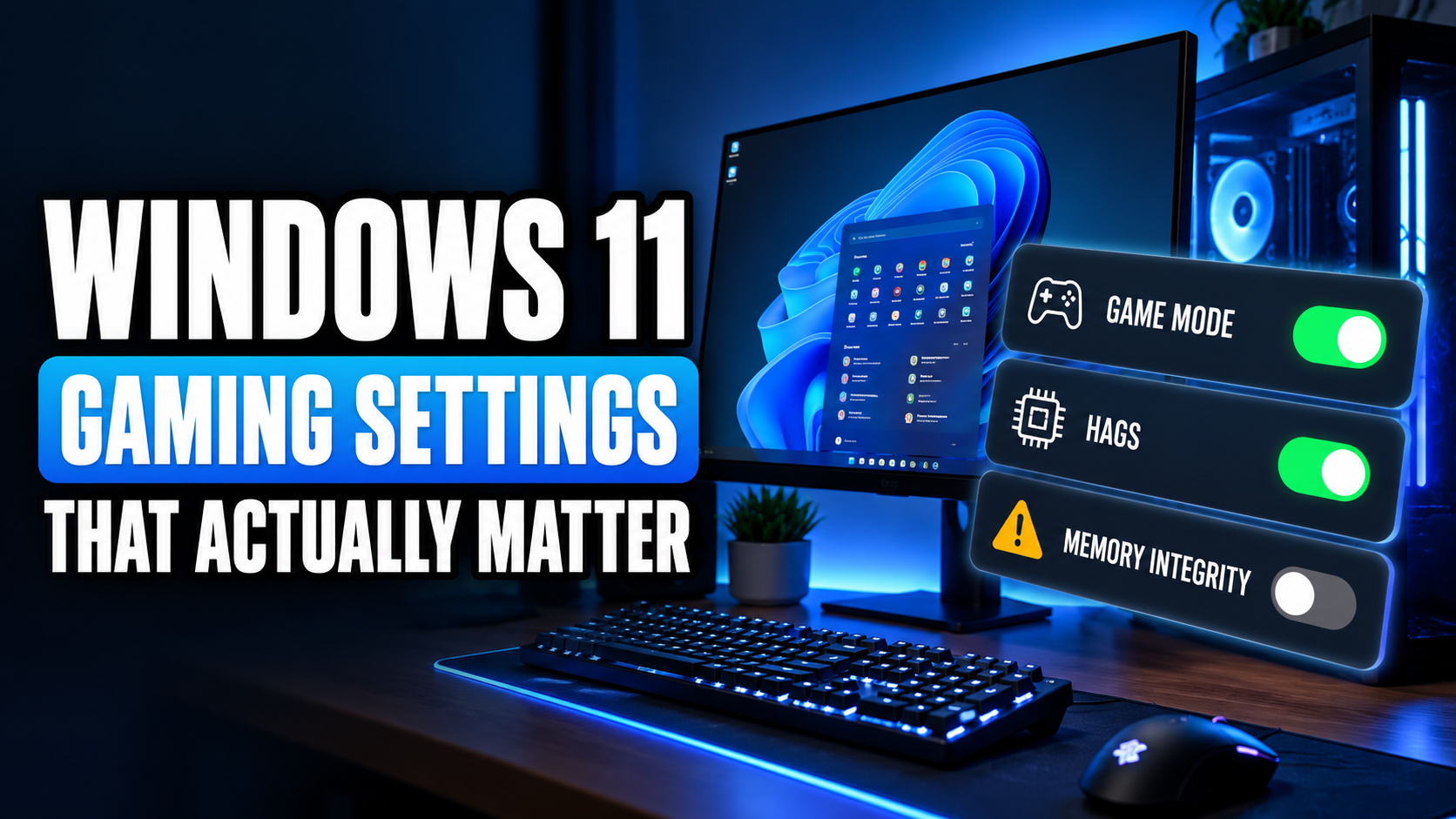
Search for “Windows 11 gaming tweaks” and you’ll find videos promising 200 extra FPS if you disable 47 services, run a mysterious script from a stranger, and delete half of Windows. Please don’t.
Most of those tweaks do nothing. A few are actively risky. But there are a handful of real Windows 11 settings that affect gaming performance, and some of them are switched to the wrong option by default. Here they are, with what each one does and when to change it.
Quick Summary
| Setting | Recommended | Impact |
| Game Mode | On | Small but helpful, especially on busy systems |
| Hardware-Accelerated GPU Scheduling (HAGS) | On | Needed for some frame generation features |
| Memory Integrity (Core Isolation) | Your choice, see below | Can cost noticeable FPS on some PCs |
| Optimizations for windowed games | On | Better latency in windowed and borderless games |
| Power mode | Best performance | Stops Windows from holding back your CPU |
| Background recording (Game Bar) | Off unless you use it | Frees up a little GPU and storage |
| Per-app GPU preference | High performance for games | Important on laptops |
Game Mode
Where: Settings > Gaming > Game Mode
Game Mode tells Windows to prioritize the game you’re playing. It pauses Windows Update installs and driver installations while you play and gives the game more of your system’s attention.
Older versions of Windows 10 had problems with Game Mode, which is why some old guides tell you to turn it off. On Windows 11, leave it on.
Hardware-Accelerated GPU Scheduling (HAGS)
Where: Settings > System > Display > Graphics, then open the advanced or default graphics settings
HAGS lets your graphics card manage its own memory and scheduling instead of handing that job to the CPU. The FPS difference is usually small. But it matters for one big reason: NVIDIA DLSS Frame Generation needs HAGS turned on.
Turn it on, then restart your PC. If one specific game starts stuttering after, try turning it off to compare.
Memory Integrity and VBS
Where: Windows Security > Device security > Core isolation > Memory integrity
This is the one that surprises people. Memory Integrity is part of Virtualization-Based Security (VBS), a security feature that protects Windows from certain kinds of attacks. On many new PCs, it’s turned on by default.
The catch is that it can reduce gaming performance, especially in CPU-heavy games. Microsoft itself has said that gamers can choose to turn it off for better performance, while noting it lowers protection.
What to do:
- If you want maximum security, leave it on. The performance hit is small on many modern CPUs.
- If you mainly game on this PC and want the extra performance, you can turn it off and restart. Keep Windows Security on, keep Windows updated, and be careful with downloads.
- Some games and anti-cheat systems require certain security features to be enabled. If a game asks you to turn something back on, do it.
This is a security trade-off, so make the call based on how you use your PC.
Optimizations for Windowed Games
Where: Settings > System > Display > Graphics, then the default graphics settings
Many modern games run in borderless windowed mode. This Windows 11 setting improves latency in those games and enables features like Auto HDR in more of them. Turn it on.
Power Mode
Where: Settings > System > Power & battery > Power mode
Set this to Best performance while gaming. On desktops, the difference is small. On laptops, it can be big, because balanced mode limits how hard the CPU can boost. Laptop players should also check our gaming laptop low FPS guide.
Game Bar Background Recording
Where: Settings > Gaming > Captures
If “Record what happened” is on, Windows constantly records the last few minutes of gameplay in the background. That uses some GPU power and storage. If you don’t use it, turn it off. If you do like clipping your best moments, keep it on. The impact is small on modern GPUs.
Pick the Right GPU for Each Game
Where: Settings > System > Display > Graphics
If your PC has both integrated graphics and a graphics card, which is almost every gaming laptop, Windows sometimes runs games on the weaker one. Click a game in this list, choose Options, and select High performance.
Tweaks You Should Skip
- Disabling random Windows services: Most make no difference, and some break Windows Update, networking or sound.
- “Debloat” scripts from unknown sources: They can remove important components or install things you didn’t want.
- Registry tweaks with no explanation: If nobody can explain what a tweak does, don’t apply it.
- Turning off Windows Defender completely: The FPS gain is close to nothing, and the risk is real.
FAQs
Should Game Mode be on in Windows 11?
Yes. On Windows 11 it helps more than it hurts.
Should I turn on HAGS?
Yes for most players, especially with a newer NVIDIA card, because DLSS Frame Generation needs it. If a game stutters afterward, compare with it off.
Does turning off Memory Integrity increase FPS?
On some PCs, yes, especially in CPU-heavy games. It also lowers your security protection, so decide based on how you use your PC.
What is the best power mode for gaming?
Best performance. It matters most on laptops.
For more ways to make your PC feel snappier, read our guide to reducing input lag on Windows 10/11, and make sure your RAM is running at full speed with our XMP guide.