Gaming Laptop Lagging? Fixes for Low FPS on Laptops (Power Plans, MUX Switch and Charging)
Your gaming laptop has a proper graphics card. The box said so. The sticker on the palm rest says so. And yet games run like they’re being played on a calculator.
This is extremely common, and the cause is usually not the hardware. Gaming laptops have a bunch of power saving and graphics switching features that can quietly cut your performance in half. Here’s how to find and fix them.
Why Laptops Lose So Much Performance
Gaming laptops are built to balance three things: performance, battery life and heat. By default, many of them lean toward battery life and quiet fans. That’s great for watching videos in class. It’s terrible for gaming.
The most common culprits:
| Problem | Performance Impact |
| Gaming on battery | Very large |
| Game running on integrated graphics | Very large |
| Silent or balanced power mode | Large |
| Graphics routed through the integrated GPU | Moderate |
| Overheating and throttling | Moderate to large |
| Single-channel RAM | Moderate |
Fix 1: Plug In the Charger
This sounds too simple, but it’s the number one cause. On battery, almost every gaming laptop limits how much power the CPU and GPU can use, sometimes to a fraction of their full power. The graphics card in particular can’t run at full speed on battery alone.
Always game with the charger plugged in. If you must play on battery, expect much lower FPS.
Fix 2: Make Sure the Game Uses Your Graphics Card
Gaming laptops have two GPUs: a weak one built into the processor and the powerful dedicated graphics card. Windows is supposed to pick the right one for games, but it doesn’t always.
In Windows:
- Go to Settings > System > Display > Graphics.
- Find your game in the list (or add it with Browse).
- Click it, choose Options, and select High performance.
In NVIDIA Control Panel:
- Open Manage 3D settings.
- Set Preferred graphics processor to High-performance NVIDIA processor.
To confirm it’s working, open Task Manager while gaming, go to the Performance tab and check that the dedicated GPU is the one showing high usage.
Fix 3: Turn On the MUX Switch (If You Have One)
This one is a big deal, and most people have never heard of it.
On many laptops, your graphics card renders the frame, then sends it through the integrated graphics before it reaches the screen. That extra trip costs performance, often around 5 to 15 percent and sometimes more in CPU-heavy games.
A MUX switch lets the graphics card connect straight to the display, skipping the detour.
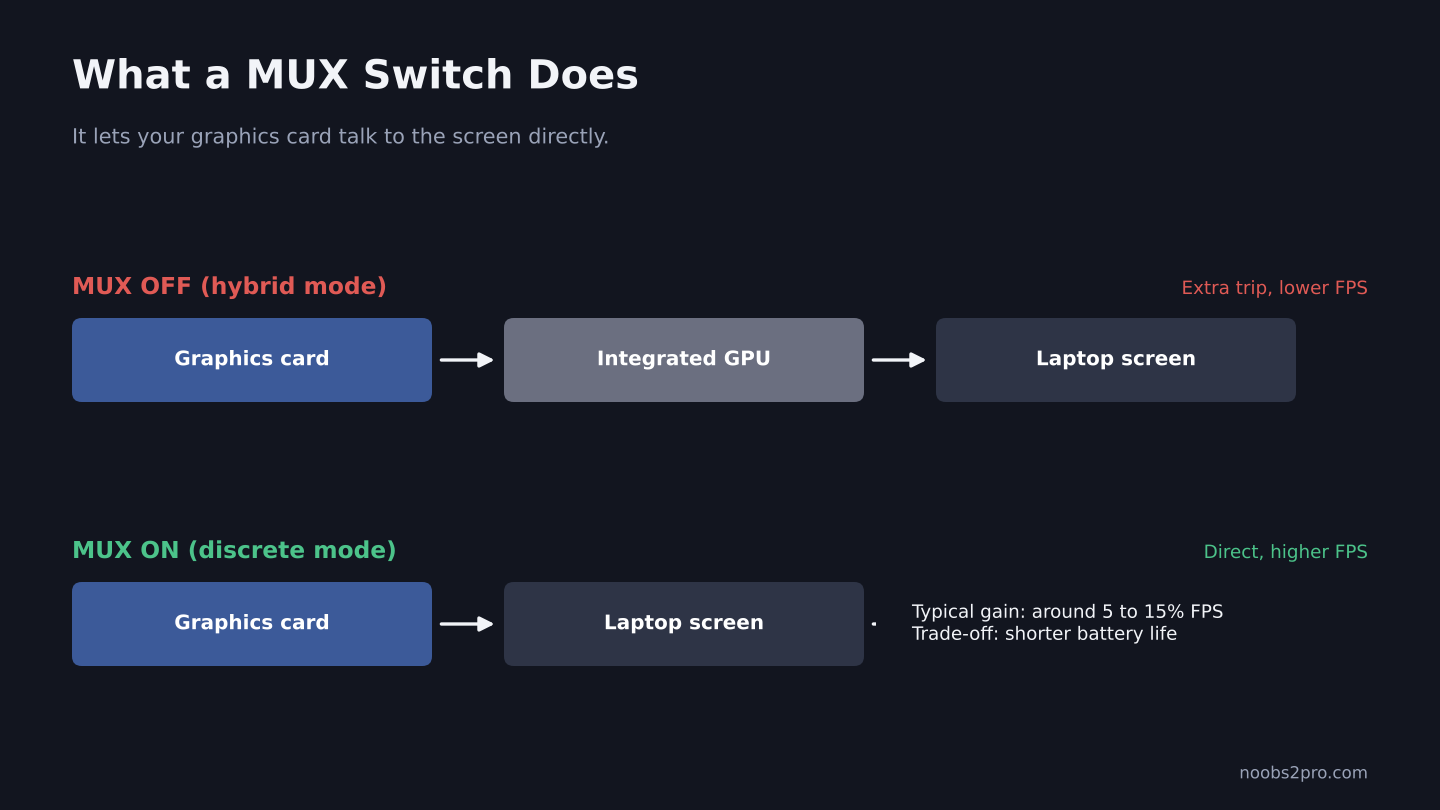
With a MUX switch on, the graphics card sends frames straight to the screen (file: laptop-mux-switch-explained.png)
How to turn it on: Look in your laptop maker’s control app. The name changes by brand:
| Brand | Where to Look | What It’s Called |
| ASUS ROG / TUF | Armoury Crate | GPU Mode: Ultimate, or MUX Switch |
| Lenovo Legion / LOQ | Lenovo Vantage or Legion Space | Hybrid Mode off, or GPU Working Mode |
| MSI | MSI Center | GPU Switch, Discrete Graphics Mode |
| Acer Predator / Nitro | PredatorSense or NitroSense | GPU Mode or MUX setting |
| HP Omen / Victus | Omen Gaming Hub | Graphics switcher, Discrete mode |
It usually needs a restart. Battery life will be shorter in this mode, so switch back when you’re not gaming. Some laptops have Advanced Optimus, which switches automatically without a restart.
Not every laptop has a MUX switch, especially budget models. If yours doesn’t, here’s a trick: many laptops wire the HDMI port directly to the graphics card. Plugging into an external monitor through that port can give you the same performance boost.
Fix 4: Use the Right Power Mode
In Windows: Go to Settings > System > Power & battery and set Power mode to Best performance.
In your laptop’s app: Set the performance profile to Performance, Turbo or whatever your brand calls the top mode. This controls fan speeds and power limits, and it often matters more than the Windows setting.
Fix 5: Fix Overheating
Laptops throttle hard when they get hot. Check your temperatures while gaming. Our guide to normal GPU and CPU temperatures explains what’s normal for laptops, which run hotter than desktops.
Quick fixes:
- Game on a hard, flat surface, never on a bed or pillow.
- Raise the back of the laptop slightly so air can get underneath.
- Clean the vents with compressed air every few months.
- Try a cooling pad. It helps some laptops more than others.
Fix 6: Check Your RAM
Many budget gaming laptops ship with a single stick of RAM. That runs in single-channel mode, which can noticeably reduce FPS, especially in CPU-heavy games and on integrated graphics.
Open Task Manager, go to Performance > Memory, and check Slots used. If it says 1 of 2, adding a matching second stick can give you a real performance boost for not much money.
Fix 7: Update Everything
- Graphics drivers from NVIDIA or AMD
- Integrated graphics drivers from Intel or AMD
- Your laptop’s BIOS and the maker’s control app
Laptop makers often release BIOS updates that improve power and cooling behavior.
Fix 8: Close Background Apps
Browser tabs, launchers, RGB apps and updaters all eat into your performance, and laptops have less headroom than desktops. Close what you don’t need before gaming.
Quick Checklist
| Check | Done? |
| Charger plugged in | |
| Game set to High performance GPU | |
| MUX switch or discrete GPU mode on | |
| Best performance power mode | |
| Laptop’s own performance mode set to max | |
| Temperatures under control | |
| Dual-channel RAM | |
| Drivers and BIOS updated |
FAQs
Why does my gaming laptop have low FPS?
Usually because it’s running on battery, using integrated graphics, set to a power saving mode, or overheating.
Does a MUX switch increase FPS?
Yes, usually by around 5 to 15 percent, sometimes more in CPU-heavy games. It sends frames straight from the graphics card to the screen.
Should I play games on battery?
You can, but performance will be much lower. Always plug in for gaming.
Does adding RAM help a gaming laptop?
If your laptop has a single RAM stick, adding a second matching one to run dual channel can noticeably improve FPS.
For more settings that help, read our guides to Windows 11 gaming settings and the best NVIDIA Control Panel settings.