
Is Your Monitor Really Running at 144Hz? How to Check and Fix It
You bought a 144Hz monitor. You plugged it in, launched a game and thought, “Huh. Feels about the same.” There’s a good chance you were right, because your monitor might still be running at 60Hz.
This is one of the most common mistakes in PC gaming. Windows doesn’t always switch to the highest refresh rate on its own, and a wrong cable or port can quietly lock you at 60Hz forever. The fix takes two minutes, and once it’s done, the difference is impossible to miss.
What Refresh Rate Actually Means
Refresh rate is how many times per second your monitor draws a new image. A 60Hz monitor updates 60 times a second. A 144Hz monitor updates 144 times a second.
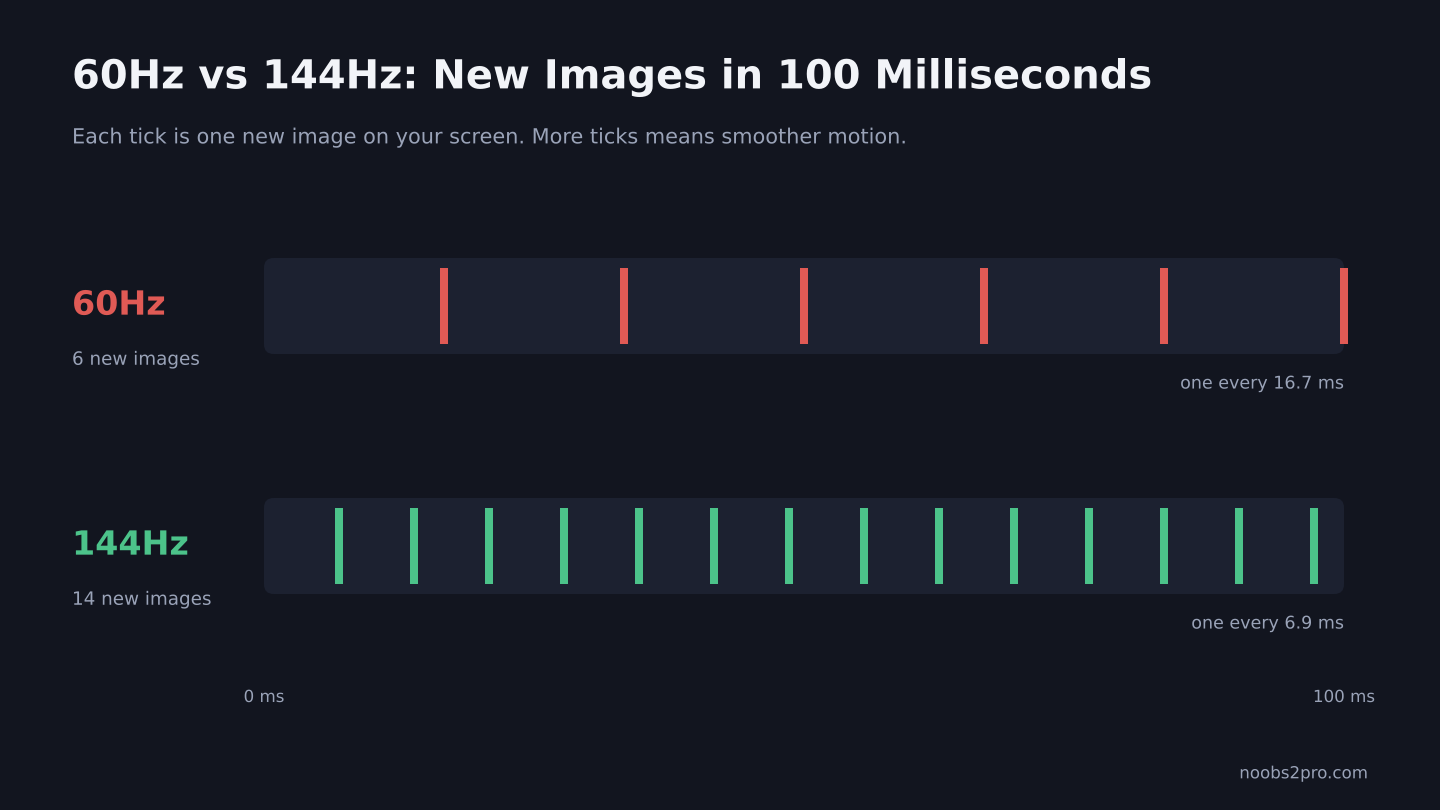
A 144Hz monitor shows more than twice as many frames as a 60Hz monitor in the same time (file: refresh-rate-60hz-vs-144hz.png)
| Refresh Rate | New Image Every | What It Feels Like |
| 60Hz | 16.7ms | Standard, fine for most things |
| 144Hz | 6.9ms | Noticeably smoother motion and faster response |
| 165Hz | 6.1ms | Slightly smoother than 144Hz |
| 240Hz | 4.2ms | Very smooth, popular for competitive shooters |
More refreshes per second means smoother movement, less blur when you flick your mouse, and enemies appear on screen a few milliseconds sooner.
Step 1: Check Your Current Refresh Rate
On Windows 11:
- Right-click the desktop and choose Display settings.
- Scroll down and click Advanced display.
- Look at Choose a refresh rate.
On Windows 10:
- Right-click the desktop and choose Display settings.
- Click Advanced display settings.
- Check the refresh rate listed for your monitor.
If it says 60Hz and your monitor is 144Hz or higher, you’ve found the problem. Click the dropdown and pick the highest number. Done.
If the higher option isn’t in the list at all, keep reading. Something else is blocking it.
Step 2: Check Which Port You’re Using
This one catches a lot of people. If you have a graphics card, your monitor cable must go into the ports on the graphics card, not the ports on the motherboard.
The motherboard ports are higher up on the back of your PC and run on the processor’s built-in graphics. Plug into those and you lose your graphics card’s performance, and often your high refresh rate too.
The graphics card ports are lower down, usually in a horizontal row. That’s where your cable belongs.
Step 3: Check Your Cable
Not every cable can carry 144Hz.
| Cable | 144Hz at 1080p? | Notes |
| DisplayPort | Yes | The safest choice for high refresh rates |
| HDMI 2.0 or newer | Usually yes | Check your monitor’s manual |
| HDMI 1.4 | Sometimes limited | Many monitors cap HDMI 1.4 at a lower refresh rate |
| DVI-D Dual Link | Yes at 1080p | Older, but works on some monitors |
| VGA | No | Too old for high refresh rates |
If your monitor came with a DisplayPort cable, use it. That one change fixes the problem for a lot of players.
Step 4: Set It in Your Graphics Driver
Sometimes Windows and your graphics driver disagree. Set it in the driver too.
NVIDIA: Open NVIDIA Control Panel, go to Display > Change resolution, and pick the highest refresh rate for your resolution.
AMD: Open AMD Software: Adrenalin Edition, go to the Display tab and check your settings there. You can also confirm the refresh rate in Windows display settings.
Step 5: Check the Monitor’s Own Settings
Open your monitor’s on-screen menu using the buttons on the monitor. Some monitors have:
- An overclock setting that unlocks a higher refresh rate, like 165Hz
- A DisplayPort version setting that limits refresh rate if set to an older version
- A power saving or eco mode that may affect performance
Check the manual for your exact model if anything looks unclear.
Step 6: Check the Game Settings
Some games have their own refresh rate option in the display settings. If a game is set to 60Hz, it’ll run at 60Hz even if Windows is set to 144Hz. Also check that your FPS is actually high enough. A 144Hz monitor only feels smooth if your game runs at a high frame rate.
Step 7: Test It
Open testufo.com in your browser. It shows your current refresh rate and a moving test image. If it says 144 (or your monitor’s max), you’re set.
Laptops: A Special Case
Gaming laptops sometimes drop to 60Hz on battery to save power. Plug in the charger and check the refresh rate again. Some laptops also have a dynamic refresh rate setting in Windows 11 that changes the rate based on what you’re doing. If the high rate isn’t showing, check the laptop maker’s control app too.
FAQs
How do I know if my monitor is running at 144Hz?
In Windows 11, go to Display settings, then Advanced display, and check the refresh rate. You can also open testufo.com to confirm.
Why can’t I select 144Hz in Windows?
Usually it’s the cable or the port. Use DisplayPort and plug into your graphics card, not the motherboard.
Does HDMI support 144Hz?
HDMI 2.0 and newer usually do at 1080p. Older HDMI 1.4 connections are often limited, depending on the monitor.
Do I need high FPS to benefit from 144Hz?
Yes. To get the full benefit, your game should run close to or above 144 FPS. Even at 90 to 100 FPS, a 144Hz monitor still feels smoother than 60Hz.
Now that your monitor is running at full speed, make sure the rest of your setup keeps up. Our guide to V-Sync, G-Sync and FreeSync explains which sync setting to use, and our XMP guide can help push your FPS higher.


