V-Sync vs G-Sync vs FreeSync: Which One Should You Turn On?
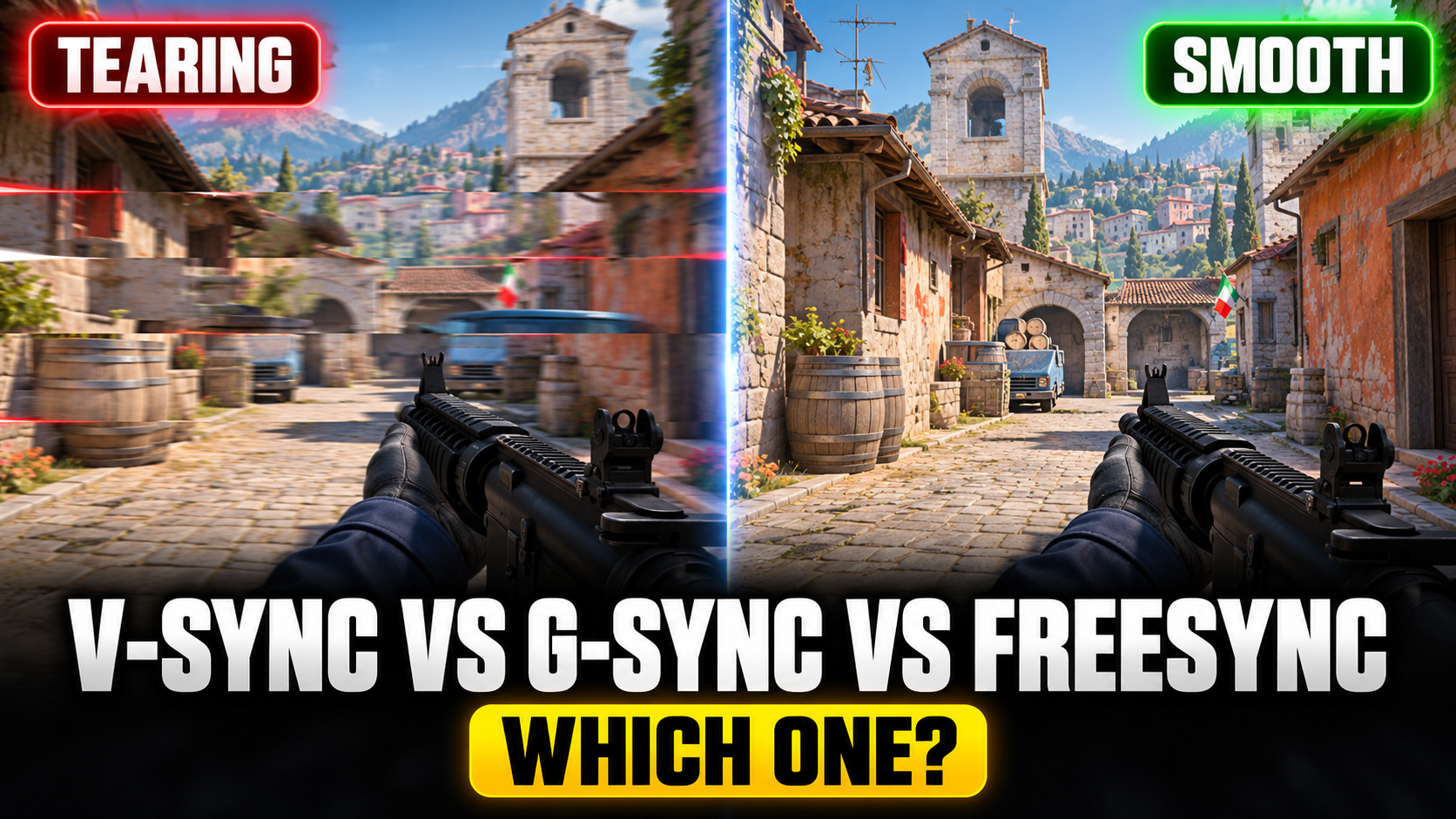
You’re playing, you turn the camera quickly, and the screen splits into two misaligned halves for a split second. That’s screen tearing. So you turn on V-Sync, the tearing goes away, and suddenly your mouse feels like it’s moving through honey.
Welcome to the oldest trade-off in PC gaming. The good news is that G-Sync and FreeSync mostly solved it, as long as you set them up right. Here’s how each one works and the setup that gives you the best of both worlds.
Why Screen Tearing Happens
Your monitor refreshes at a fixed speed, like 144 times a second. Your graphics card makes frames at whatever speed it can, which changes constantly. When a new frame arrives halfway through the monitor drawing the old one, you see the top of one frame and the bottom of another. That’s a tear.
V-Sync: The Old Fix
V-Sync makes your graphics card wait until the monitor is ready before sending a new frame. No more tearing.
The problem is the waiting. Frames get held back, which adds input lag. And if your FPS drops below your refresh rate, traditional V-Sync can make it drop even further, causing stutter.
| V-Sync | |
| Removes tearing | Yes |
| Adds input lag | Yes, noticeably |
| Needs special monitor | No |
| Best for | Slow single-player games, older monitors |
G-Sync and FreeSync: The Better Fix
G-Sync (NVIDIA) and FreeSync (AMD) flip the problem around. Instead of making the graphics card wait for the monitor, the monitor waits for the graphics card. Every time a new frame is ready, the monitor shows it. This is called variable refresh rate, or VRR.
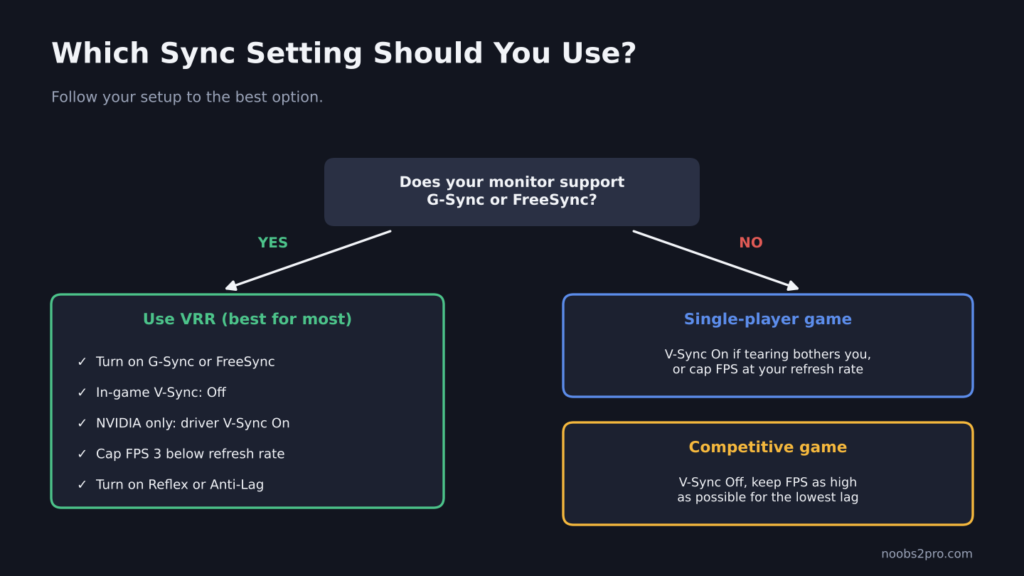
How to choose the right sync setting for your setup (file: vsync-gsync-freesync-setup.png)
| V-Sync | G-Sync | FreeSync | |
| Made by | Everyone | NVIDIA | AMD (open standard) |
| Removes tearing | Yes | Yes | Yes |
| Input lag | High | Very low | Very low |
| Needs | Any monitor | G-Sync or G-Sync Compatible monitor | FreeSync monitor |
| Works with | Any GPU | NVIDIA GPUs | AMD GPUs, and many work with NVIDIA too |
Many FreeSync monitors also work with NVIDIA cards as G-Sync Compatible. If you have an NVIDIA card and a FreeSync monitor, try turning on G-Sync in the NVIDIA Control Panel. It often works fine.
The VRR Range Matters
G-Sync and FreeSync only work within a certain range of frame rates, usually something like 48 to 144 FPS on a 144Hz monitor.
- Below the range: Some monitors use a trick called Low Framerate Compensation, which doubles frames to stay in range. Others start tearing again.
- Above the range: VRR turns off and you get tearing again, unless you cap your FPS.
That second point is why the FPS cap is so important.
The Best Setup for Most Players
With an NVIDIA card and a G-Sync or G-Sync Compatible monitor:
- Turn on G-Sync in NVIDIA Control Panel.
- Turn V-Sync on in the NVIDIA Control Panel.
- Turn V-Sync off in the game.
- Cap your FPS about 3 frames below your refresh rate (141 FPS on 144Hz, 162 on 165Hz, 237 on 240Hz).
- If the game has NVIDIA Reflex, turn it on.
With an AMD card and a FreeSync monitor:
- Turn on FreeSync in AMD Adrenalin, under the Display tab.
- Turn V-Sync off in the game.
- Cap your FPS about 3 frames below your refresh rate using the game’s limiter or Frame Rate Target Control.
- Turn on Radeon Anti-Lag, or Anti-Lag 2 if the game supports it.
The FPS cap keeps you inside the VRR range so tearing never comes back. V-Sync in the NVIDIA driver works as a safety net for rare frame time spikes, and with the cap in place it doesn’t add the usual V-Sync lag.
What About Competitive Players?
Some competitive players turn everything off and let the FPS run as high as possible, accepting some tearing in exchange for the absolute lowest latency. If your FPS is far above your refresh rate, say 400 FPS on a 144Hz monitor, the tearing is less visible and input lag is very low.
There’s no wrong answer here. Try both and see what feels better to you. For most people, VRR with a frame cap feels best.
Quick Decision Guide
| Your Setup | Use This |
| G-Sync or FreeSync monitor | VRR on, in-game V-Sync off, FPS capped 3 below refresh |
| No VRR monitor, single-player game | V-Sync on, or an FPS cap at your refresh rate |
| No VRR monitor, competitive game | V-Sync off, high uncapped FPS |
| FPS far above refresh rate, competitive | VRR optional, many pros run uncapped |
FAQs
Should I turn V-Sync on or off?
If you have a G-Sync or FreeSync monitor, turn V-Sync off in the game and use VRR with an FPS cap. Without a VRR monitor, use V-Sync only if tearing bothers you and you don’t mind a bit of input lag.
Is G-Sync better than FreeSync?
They do the same job. Monitors with a dedicated G-Sync module can perform slightly better at very low frame rates, but most players won’t notice a difference.
Does FreeSync work with NVIDIA cards?
Often, yes. Many FreeSync monitors work as G-Sync Compatible. Turn it on in the NVIDIA Control Panel to try it.
Why cap FPS below the refresh rate?
It keeps the frame rate inside the G-Sync or FreeSync range so it stays active, which prevents tearing and keeps input lag low.
Set up your driver properly with our guides to the best NVIDIA Control Panel settings and best AMD Adrenalin settings. And if everything still feels sluggish, check our guide to reducing input lag on Windows 10/11.