How to Play Old PC Games on Windows 11 (Compatibility Fixes That Work)
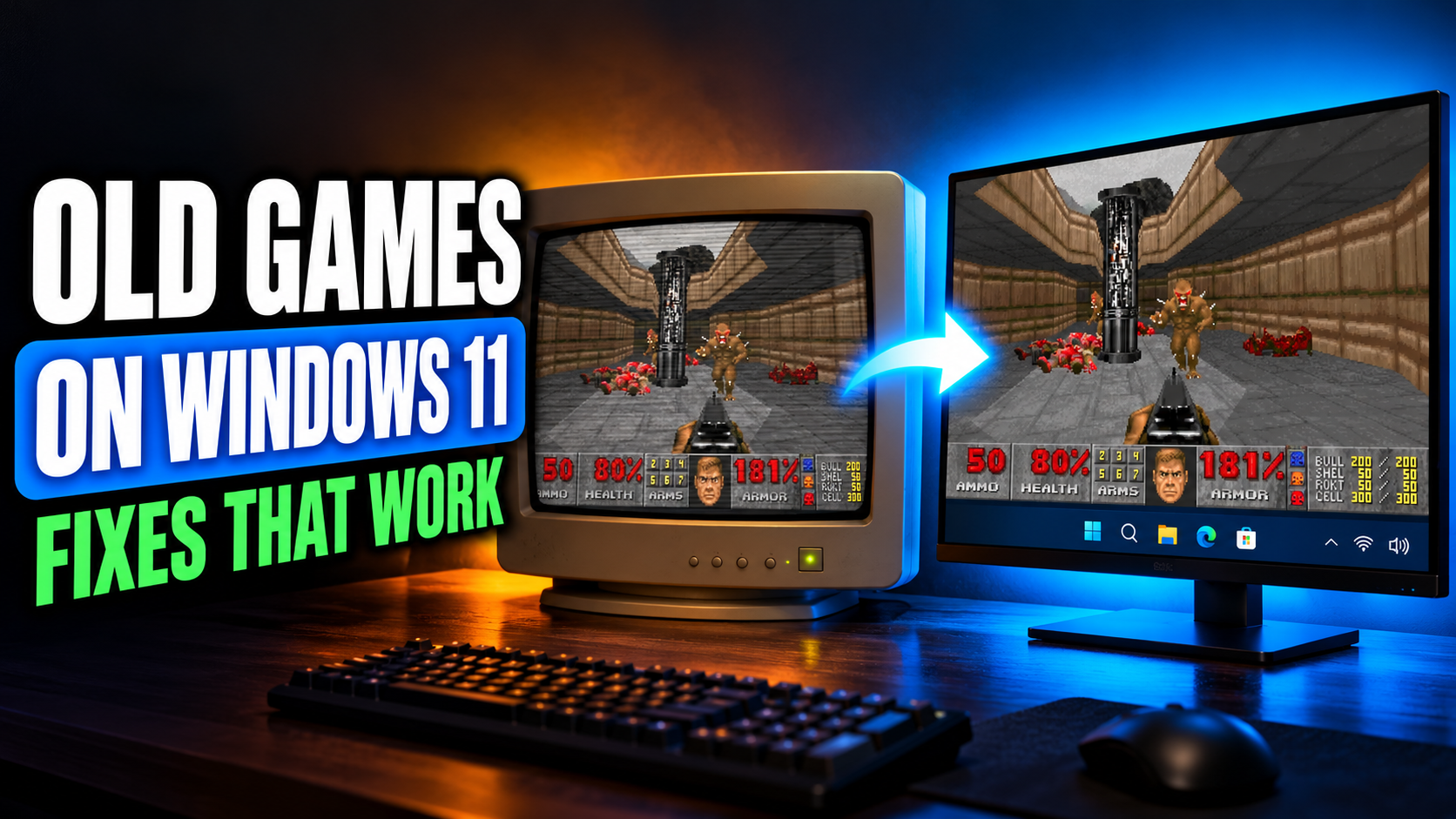
You finally find your old copy of a game you loved as a kid. You install it, double-click, and nothing happens. Or it opens in a tiny window, crashes at the menu, or complains about a DLL you’ve never heard of.
Old games weren’t built for Windows 11, and Windows 11 isn’t exactly sentimental about them. But most classic games can still run with a few fixes. Here’s how to get them working, starting with the easiest tricks and moving to the ones that rescue the stubborn games.
Why Old Games Break on Windows 11
| Problem | What Causes It |
| Game won’t open at all | Missing DirectX or Visual C++ files, or old copy protection |
| “d3dx9_43.dll is missing” type errors | Old DirectX 9 files that Windows 11 doesn’t include |
| Installer won’t run | 16-bit installers don’t work on 64-bit Windows |
| Game runs at strange speed | Game physics tied to old, low frame rates |
| Tiny window or stretched picture | Game only supports old resolutions like 800×600 |
| Crashes with no message | Compatibility issues, admin permissions or old DRM |
| Multiplayer won’t work | Old online services like Games for Windows Live shut down |
Fix 1: Run It in Compatibility Mode
This is Windows’ built-in way of pretending to be an older version.
- Right-click the game’s .exe file (not just the shortcut, if you can find it) and choose Properties.
- Open the Compatibility tab.
- Tick Run this program in compatibility mode for and choose an older Windows version. Windows XP (Service Pack 3) or Windows 7 work for most older games.
- Click Apply and try the game.
If one version doesn’t work, try another. It’s a bit of guesswork, but it fixes plenty of games.
While you’re on that tab, a few other settings can help:
- Run this program as an administrator fixes games that try to save files in protected folders.
- Reduced color mode helps very old games with broken colors.
- Disable fullscreen optimizations can fix flickering or crashes when switching windows.
Fix 2: Install the Old DirectX Files
Windows 11 has DirectX 12, but many older games need specific DirectX 9, 10 or 11 files that aren’t included by default. That’s why you see errors like “d3dx9_43.dll is missing.”
The fix is Microsoft’s DirectX End-User Runtimes (June 2010) package, available free on Microsoft’s website. Install it, and it adds those older DirectX files without touching your current DirectX 12 setup.
Don’t download single DLL files from random websites. They can be the wrong version or carry malware. The official package installs everything properly.
Fix 3: Install Visual C++ Redistributables and .NET Framework
Many games from the 2000s and 2010s need older Visual C++ libraries. Microsoft offers them as free “Visual C++ Redistributable” downloads. Installing the full set from 2005 to the latest version fixes a lot of games that crash at launch.
Some older games also need .NET Framework 3.5, which Windows 11 doesn’t turn on by default. To enable it:
- Press Windows + R, type optionalfeatures and press Enter.
- Tick .NET Framework 3.5 (includes .NET 2.0 and 3.0).
- Click OK and let Windows download it.
Fix 4: Turn On DirectPlay
Lots of games from the late 90s and early 2000s use an old Microsoft networking feature called DirectPlay, even for single player. Without it, they won’t start.
- Press Windows + R, type optionalfeatures and press Enter.
- Expand Legacy Components.
- Tick DirectPlay, click OK and restart if asked.
Fix 5: Check PCGamingWiki First
Before you spend an hour trying random fixes, search for your game on PCGamingWiki. It’s a free, community-run site with a page for almost every PC game, listing known problems on modern Windows and the exact fixes.
It covers widescreen patches, frame rate fixes, missing files and multiplayer workarounds. For many old games, it’s the fastest route from “doesn’t work” to “playing.”
Fix 6: Use a Wrapper for Very Old 3D Games
Games from the late 1990s often use early versions of DirectX or old graphics systems like 3dfx Glide that modern graphics cards don’t handle well. These games might show black screens, missing textures or terrible performance.
A free tool called dgVoodoo 2 fixes this by translating those old graphics calls into modern DirectX. You copy a few files into the game folder, and suddenly a game from 1999 runs smoothly on a modern GPU. PCGamingWiki usually tells you if your game needs it.
Fix 7: Use DOSBox for DOS Games
If the game is from the MS-DOS era, Windows 11 can’t run it directly at all. DOSBox is a free program that creates a little DOS computer inside your PC. Many classic DOS games run perfectly in it.
Even easier: a lot of classic games sold on GOG and Steam today already come packaged with DOSBox, so they just work after you install them.
Fix 8: Deal With Old Installers and Copy Protection
Two problems here are worth knowing about.
16-bit installers. Some games from the 90s use installers that 64-bit Windows can’t run at all. You’ll get an error that the app can’t run on your PC. Sometimes the game itself is 32-bit and works fine once it’s installed, so community tools or manually copying files from the disc can get around the installer. Check PCGamingWiki for your game.
Old disc copy protection. Many games from the 2000s used copy protection called SafeDisc or SecuROM. Windows 10 and 11 dropped support for these because of security problems. If your old disc game refuses to start for this reason, compatibility mode won’t help. The easiest legal fix is buying the game again on GOG or Steam, where most classics are sold without that old protection, often cheaply during sales.
Fix 9: Fix Weird Game Speed
Some old games tie their physics or timing to frame rate. They were designed for 30 or 60 FPS, and on a modern PC running at 300 FPS, everything happens way too fast or breaks completely.
The fix is to cap the frame rate. You can do this in the NVIDIA Control Panel, AMD Adrenalin, or with RivaTuner Statistics Server, which comes with MSI Afterburner. Capping at 60 FPS fixes most of these games.
Fix 10: Get Widescreen and Higher Resolutions
Old games often only support 800×600 or 1024×768, which looks stretched or tiny on a modern monitor. Community widescreen patches exist for many popular classics. Again, PCGamingWiki lists them for each game.
If no patch exists, set your GPU control panel to keep the original aspect ratio instead of stretching. You’ll get black bars on the sides, but the game won’t look squashed.
Fix 11: Buy the GOG Version
If a game you own on disc just won’t cooperate, check GOG.com. GOG specializes in old games and patches them to run on modern Windows, often with DOSBox or wrappers already set up. They’re DRM-free and frequently on sale. Sometimes paying a small amount is better than spending a whole evening troubleshooting.
Quick Fix Guide
| Symptom | Try This First |
| Missing d3dx9 or similar DLL | Fix 2, DirectX June 2010 runtimes |
| Crashes instantly at launch | Fix 1 compatibility mode, then Fix 3 |
| Game from 1997 to 2001 won’t start | Fix 4, DirectPlay |
| Black screen in very old 3D game | Fix 6, dgVoodoo 2 |
| DOS game | Fix 7, DOSBox |
| Disc game won’t run at all | Fix 8, buy on GOG or Steam |
| Everything runs too fast | Fix 9, cap FPS at 60 |
FAQs
Can Windows 11 run old games?
Yes, many of them. Most old Windows games run with compatibility mode, missing DirectX files or small community fixes. DOS games need DOSBox.
How do I fix “d3dx9_43.dll is missing” on Windows 11?
Install Microsoft’s DirectX End-User Runtimes (June 2010) from the official Microsoft website. Avoid downloading single DLL files from random sites.
Why won’t my old game disc work on Windows 11?
Many 2000s disc games use SafeDisc or SecuROM copy protection, which Windows 10 and 11 no longer support. Buying the game on GOG or Steam is the easiest legal fix.
Which compatibility mode should I use?
Start with Windows XP (Service Pack 3) for games from the early 2000s and Windows 7 for games from around 2009 to 2013. If one doesn’t work, try another.
Is DOSBox safe and free?
Yes. DOSBox is free, open source and widely used. Many official game stores bundle it with classic games.
If your old favorites run but feel sluggish on a modern setup, our guide to reducing input lag on Windows 10/11 can help. And if Steam throws a fit while installing a classic, here’s how to fix the Steam disk write error.