How to Fix Steam Disk Write Error
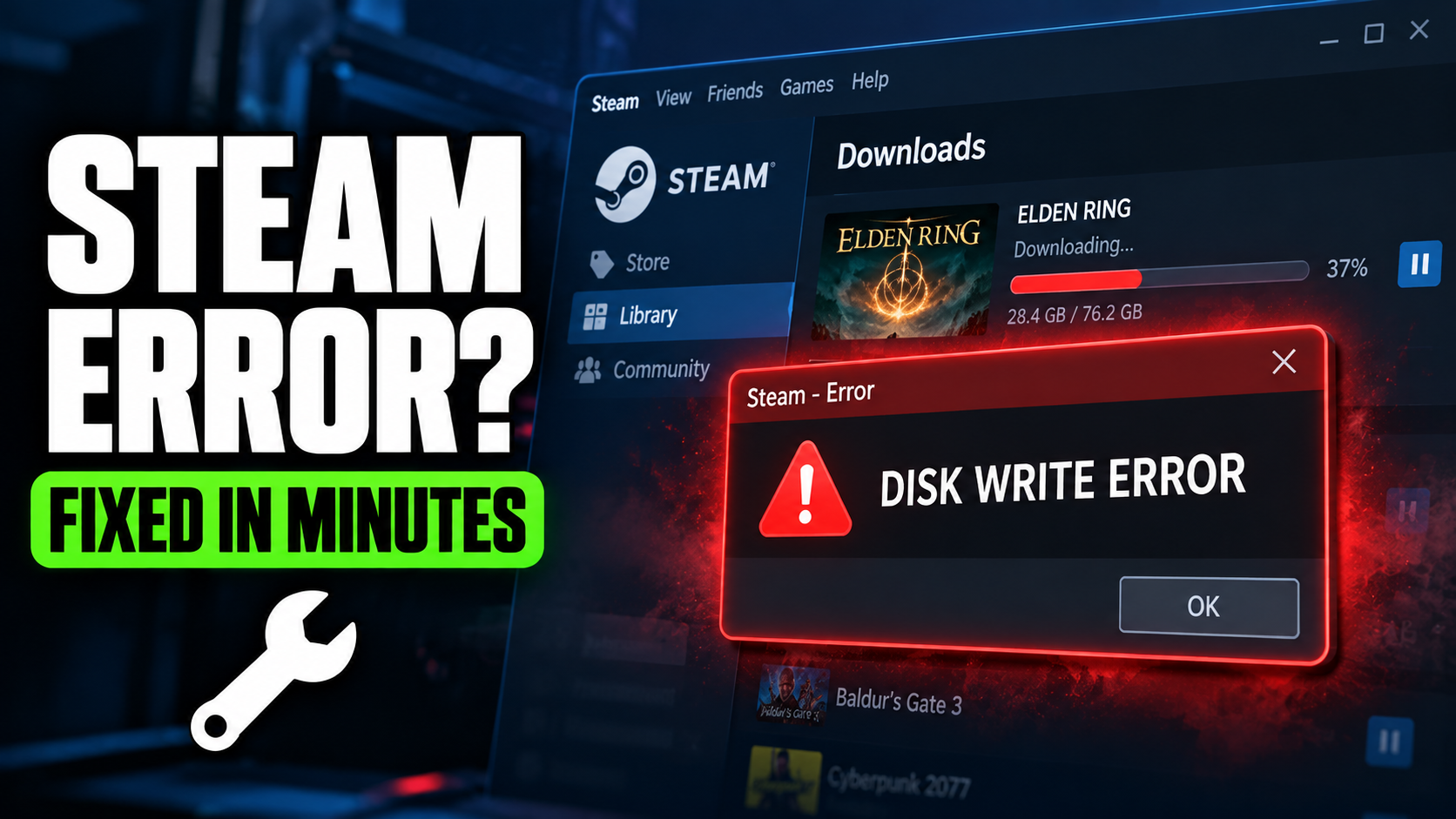
You hit download, Steam gets to 37%, and then it stops with a message that says “An error occurred while updating (disk write error).” Or it happens right when you try to launch a game. Either way, you’re not playing anything tonight unless you fix it.
The good news is that this error is common and almost always fixable. It means Steam tried to save files to your drive and something blocked it. The fixes below start with the quickest and work up to the more thorough ones. Most people are back in game within the first four.
What Causes the Steam Disk Write Error?
| Cause | How Common |
| Steam doesn’t have permission to write to the folder | Very common |
| A corrupted or 0KB file in the game folder | Very common |
| Antivirus or Windows security blocking Steam | Common |
| Corrupted download cache | Common |
| The drive or folder is set to read-only | Occasional |
| Not enough free space | Occasional |
| Errors on the hard drive or SSD | Less common, but serious |
Fix 1: Restart Steam and Your PC
Yes, really. Steam sometimes keeps a file locked in the background. Fully close Steam (right-click the tray icon near the clock and choose Exit), then restart your PC and try again. It takes two minutes and fixes more cases than you’d expect.
Fix 2: Run Steam as Administrator
This gives Steam full permission to write files.
- Close Steam completely.
- Right-click the Steam shortcut and choose Run as administrator.
- Try the download again.
If that fixes it, make it permanent: right-click the shortcut, go to Properties > Compatibility, tick Run this program as an administrator, and click Apply.
Fix 3: Delete the 0KB File Causing the Problem
When a download fails, Steam sometimes leaves behind an empty file with the same name as the game. That empty file blocks every future attempt.
- Open your Steam library folder. By default it’s C:\Program Files (x86)\Steam\steamapps\common.
- Look for a file (not a folder) with the game’s name and a size of 0 KB.
- Delete it, then retry the download.
Not sure which file it is? Open C:\Program Files (x86)\Steam\logs\content_log.txt in Notepad and scroll to the bottom. The error line usually names the exact file that failed to write.
Fix 4: Clear the Steam Download Cache
A corrupted download cache causes all sorts of weird update errors.
- Open Steam and go to Steam > Settings > Downloads.
- Click Clear Download Cache and confirm.
- Steam will restart and ask you to log in again.
This doesn’t delete any installed games.
Fix 5: Repair the Steam Library Folder
Steam has a built-in tool that fixes permission problems in the folder where your games are installed.
- Go to Steam > Settings > Storage.
- Pick the drive where the game is installed.
- Click the three dots menu and choose Repair Folder.
Let it finish, then try again.
Fix 6: Verify the Game Files
If the error shows up when launching or updating a game you already have installed:
- Right-click the game in your library and choose Properties.
- Go to Installed Files.
- Click Verify integrity of game files.
Steam will check every file and redownload anything broken. This can take a while for big games, so be patient.
Fix 7: Check Your Antivirus and Windows Security
Antivirus programs sometimes treat Steam writing lots of files quickly as suspicious and block it.
If you use Windows Security: go to Windows Security > Virus & threat protection > Ransomware protection. If Controlled folder access is on, either turn it off or click Allow an app through Controlled folder access and add Steam.
If you use another antivirus: add your Steam folder to its exclusions or exceptions list.
Avoid simply disabling your antivirus for good. Adding Steam as an exception is safer and fixes the problem just as well.
Fix 8: Remove Read-Only From the Steam Folder
- Go to C:\Program Files (x86) and right-click the Steam folder.
- Choose Properties.
- Under Attributes, untick Read-only if it’s ticked.
- Click Apply and choose to apply the change to all subfolders and files.
If your games are on a second drive, do the same for the library folder on that drive.
Fix 9: Check for Free Space
Steam needs extra room while downloading, not just the final game size. Big updates are downloaded and then unpacked, so you can need almost double the update size free for a short time. Clear some space and try again.
Fix 10: Check Your Drive for Errors
If the error keeps coming back across different games, the drive itself might have problems.
- Open File Explorer > This PC.
- Right-click the drive Steam uses and choose Properties.
- Go to the Tools tab and click Check under Error checking.
If Windows finds and repairs errors, try Steam again. If the drive keeps reporting errors, back up anything important. A failing drive is a bigger problem than one game not updating.
Fix 11: Move the Game to Another Drive
If you have a second drive, create a new Steam library there and move the game.
- Go to Steam > Settings > Storage.
- Click the drive dropdown and choose Add Drive, then pick your other drive.
- Select the game in the storage list and click Move.
If the game works on the new drive, the problem was with the old folder or drive.
Fix 12: Flush the Steam Config
This resets Steam’s settings without touching your games.
- Close Steam completely.
- Press Windows + R, type steam://flushconfig and press Enter.
- Confirm, then open Steam again.
Fix 13: Reinstall Steam (Last Resort)
If nothing else works, reinstall Steam. Before you do, move the steamapps folder out of the Steam directory so you don’t lose your installed games. After reinstalling, move it back and Steam will detect your games.
Which Fix Should You Try First?
| Situation | Start With |
| Error on one game during download | Fix 3 (0KB file), then Fix 4 |
| Error on every game | Fix 2 (admin), then Fix 7 (antivirus) |
| Error when launching an installed game | Fix 6 (verify files) |
| Error came back after working before | Fix 10 (check drive) |
FAQs
What does Steam disk write error mean?
It means Steam tried to save game files to your drive and couldn’t. This is usually caused by folder permissions, a corrupted file, your antivirus, or a problem with the drive.
Will clearing the download cache delete my games?
No. It only clears temporary download data. Your installed games and saves stay where they are.
Can a disk write error mean my drive is failing?
Sometimes. If you get the error on many games and Windows finds errors when checking the drive, back up your files and consider replacing the drive.
Why does the error happen only on one game?
Usually because of a leftover 0KB file or a corrupted file in that game’s folder. Deleting the empty file or verifying the game files usually fixes it.
Once you’re back in, make sure the game actually runs well. Our guide to reducing input lag on Windows 10/11 and our XMP setup guide are both quick wins for smoother performance.