What Is a Normal GPU and CPU Temperature While Gaming?
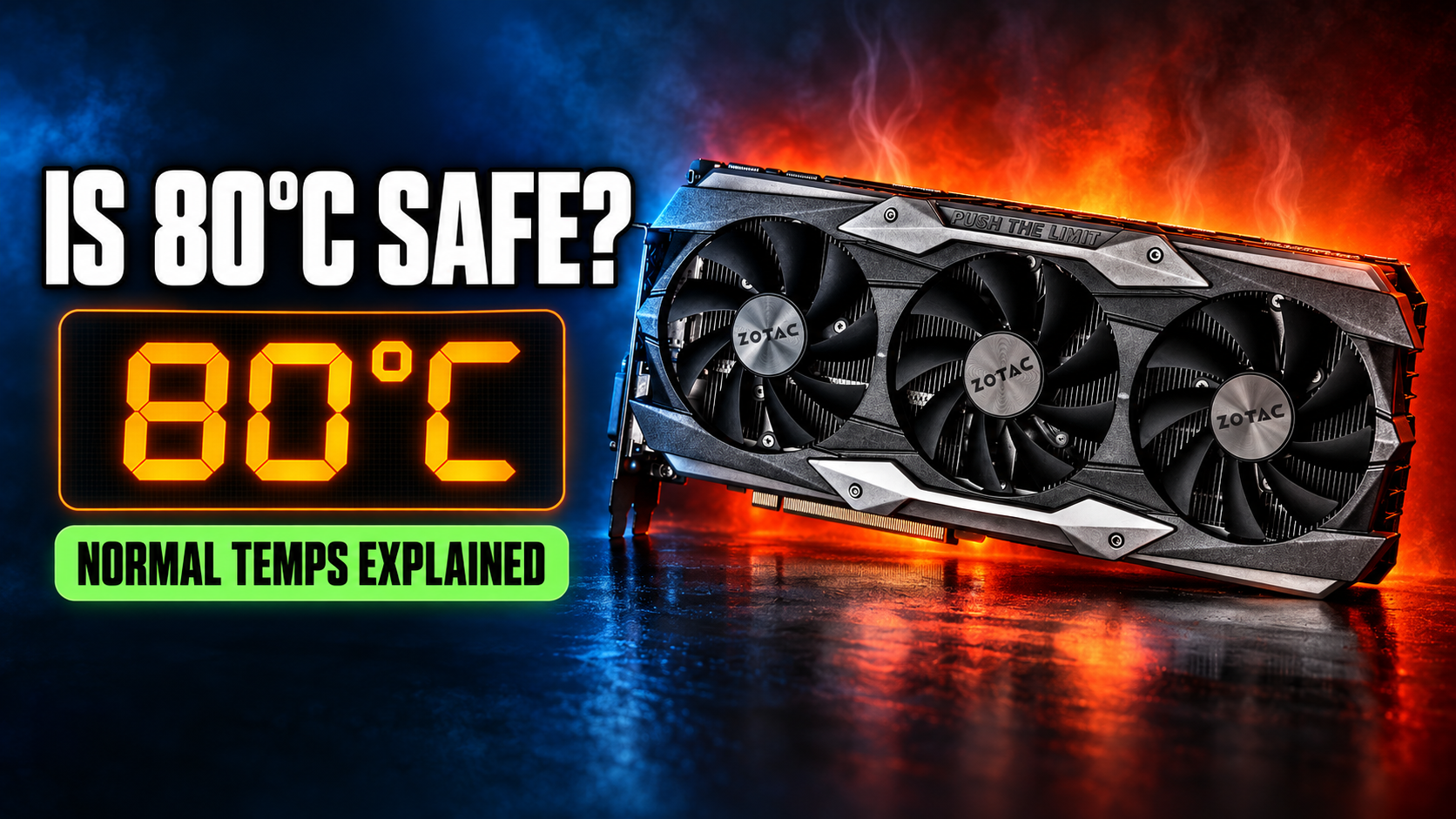
You open MSI Afterburner for the first time, start a game, and see your GPU sitting at 80°C. Your first thought is that something is about to melt.
It isn’t. In most cases, 80°C is a completely normal number for a graphics card under load. Modern chips are built to run hot, and they protect themselves long before anything gets damaged.
That said, “normal” has limits, and a PC that runs too hot will lose performance, get loud and wear out faster. Here’s what’s actually normal, when you should worry, and how to bring temps down if they’re too high.
The Quick Answer
| Component | Idle | Gaming (Normal) | Getting Hot | Too Hot |
|---|---|---|---|---|
| GPU (desktop) | 30 to 50°C | 60 to 80°C | 80 to 85°C | Above 85°C for long periods |
| CPU (desktop) | 30 to 50°C | 60 to 80°C | 80 to 90°C | Above 90°C for long periods |
| Gaming laptop GPU | 40 to 55°C | 70 to 85°C | 85 to 90°C | Above 90°C |
| Gaming laptop CPU | 40 to 60°C | 75 to 90°C | 90 to 95°C | Constantly at 95°C or more |
If your numbers fall in the “normal” column, close the monitoring app and go play. You’re fine.
Normal GPU Temperatures While Gaming
Most desktop graphics cards from NVIDIA and AMD will sit somewhere between 60°C and 80°C during a gaming session. Bigger cards with large coolers usually run cooler. Small, single-fan cards run warmer because they’re moving the same heat through less metal.
NVIDIA cards start pulling back their clock speeds as they approach the high 80s. This is called thermal throttling. The card isn’t breaking, it’s protecting itself by running a bit slower. You’ll notice it as lower FPS rather than a crash.
The AMD “Hotspot” Number That Scares Everyone
If you have an AMD card, your monitoring tool might show two temperatures: GPU temperature and junction (or hotspot) temperature. The junction number is the hottest single point on the chip, and it’s always higher.
AMD designs its recent cards so the junction temperature can go as high as 110°C under normal operation. So if you see 95°C on the hotspot reading, take a breath. Look at the regular GPU temperature instead. That’s the number that tells you how your card is doing overall.
Normal CPU Temperatures While Gaming
Games usually don’t push a CPU as hard as a rendering job or a stress test, so most gaming CPUs land between 60°C and 80°C.
Newer processors are designed to run hotter than older ones, which confuses a lot of people:
| CPU Family | Maximum Safe Temperature | What That Means |
|---|---|---|
| Intel 12th, 13th and 14th Gen | 100°C | Short spikes into the 90s under heavy load are expected |
| AMD Ryzen 7000 and newer | 95°C | AMD designed these to run up to 95°C when boosting |
| Older Intel and AMD chips | Around 90 to 100°C | Varies by model, check your exact CPU |
A Ryzen 7000 chip that briefly hits 95°C isn’t broken. It’s boosting as hard as it’s allowed to. The problem is when it sits at that temperature during normal gaming and your FPS drops, because that means it’s throttling.
Why Gaming Laptops Run Hotter
Gaming laptops cram a powerful CPU and GPU into a body that’s about two centimeters thick. There’s very little room for air to move, so laptop temps are naturally 10 to 15 degrees higher than a desktop with similar parts.
A laptop CPU sitting at 90°C while gaming is common and usually within spec. It isn’t ideal, but it’s not an emergency either. What matters more is whether the laptop is throttling and losing performance halfway through a session.
Your Room Temperature Matters More Than You Think
Your PC can only cool itself down to the temperature of the air around it. If your room is 25°C, your components start from 25°C. If your room is 38°C in May, they start from 38°C.
That’s a real difference. A GPU that runs at 72°C in winter can easily hit 82°C in peak summer without anything being wrong with it. If you live somewhere with hot summers, judge your temps against your room, not against a forum post written by someone in Canada.
How to Check Your Temperatures
You don’t need anything fancy. Any of these will do the job:
| Tool | Shows | Best For |
|---|---|---|
| Task Manager (Performance tab) | GPU temp | A quick check, no download needed |
| MSI Afterburner | GPU and CPU temps in-game | Watching temps while you play |
| HWiNFO | Every sensor in your PC | Detailed checks, including AMD hotspot |
| NVIDIA App or AMD Adrenalin | GPU temp and performance | Using the software you already have |
Check your temps after 20 to 30 minutes of gaming, not in the first five minutes. Components take a while to heat up and settle.
When Should You Actually Worry?
Your temperatures are a problem if any of these happen:
- Your GPU sits above 85°C for long stretches and your FPS drops after 15 to 20 minutes of play.
- Your CPU stays above 90°C during regular gaming, not just short spikes.
- Your PC shuts down or restarts on its own while gaming.
- Your fans are running at full speed and your temps are still climbing.
- Your temps are much higher than they were a few months ago with the same games.
That last one is the most common, and it usually has a very boring cause: dust.
How to Lower GPU and CPU Temperatures
These are listed roughly from easiest to most involved.
Clean out the dust. This fixes more overheating PCs than anything else. Turn off the PC, unplug it, and use compressed air on the fans, the GPU cooler and any dust filters. Hold the fans still while you spray so they don’t spin too fast. If you haven’t cleaned your PC in a year, expect a drop of 5 to 10 degrees.
Cap your frame rate. If your monitor is 60Hz and your GPU is rendering 200 FPS, it’s working hard for frames you can’t even see. Set a frame cap a few FPS above your refresh rate in the game settings or your GPU’s control panel. Your GPU will run cooler and quieter, and you won’t notice any difference on screen.
Fix your airflow. Air should come in from the front of the case and leave from the back and top. If your case has fans pointing the wrong way, or if it’s pushed against a wall or tucked inside a closed desk cabinet, it’s breathing its own hot air.
Set a custom fan curve. By default, many GPUs keep their fans slow to stay quiet. In MSI Afterburner, you can make the fans spin faster as temps rise. It’s louder, but it can take several degrees off.
Undervolt your GPU. This means running the GPU at a slightly lower voltage while keeping similar clock speeds. Done properly, it lowers temperature and power use with little to no performance loss. It takes some trial and error, so follow a guide made for your exact card.
Replace the thermal paste. Thermal paste dries out over the years. If your CPU or GPU is three or four years old and temps have slowly crept up, fresh paste can help a lot. This one involves taking the cooler off, so only do it if you’re comfortable working inside your PC.
For laptops: Use it on a hard, flat surface, never on a bed or blanket. Raising the back of the laptop a little helps air get in underneath. A cooling pad helps some laptops more than others, but it rarely hurts.
FAQs
Is 80°C safe for a GPU?
Yes. 80°C is within the normal range for most graphics cards while gaming. It’s warm, but it’s not damaging the card.
Is 90°C too hot for a CPU while gaming?
For short spikes, it’s usually fine on modern CPUs. If it stays at 90°C or above during normal gaming on a desktop, you should improve your cooling.
Can high temperatures damage my PC?
Modern CPUs and GPUs throttle and then shut down before they reach temperatures that would cause instant damage. But running very hot all the time can shorten the life of components over the years, so it’s still worth keeping temps reasonable.
Why is my GPU hotter in summer?
Because your room is hotter. Your PC can’t cool itself below the temperature of the air around it, so a hotter room means higher temps across the board.
What’s the fastest way to lower my GPU temperature?
Clean the dust and cap your frame rate. Both are free and take less than 15 minutes.
If your temps are fine but your games still feel sluggish, the problem might not be heat at all. Our guide on reducing input lag on Windows 10/11 covers the settings that cause that “floaty” feeling.