
How to Fix Controller Stick Drift (PS5, PS4 and Xbox)
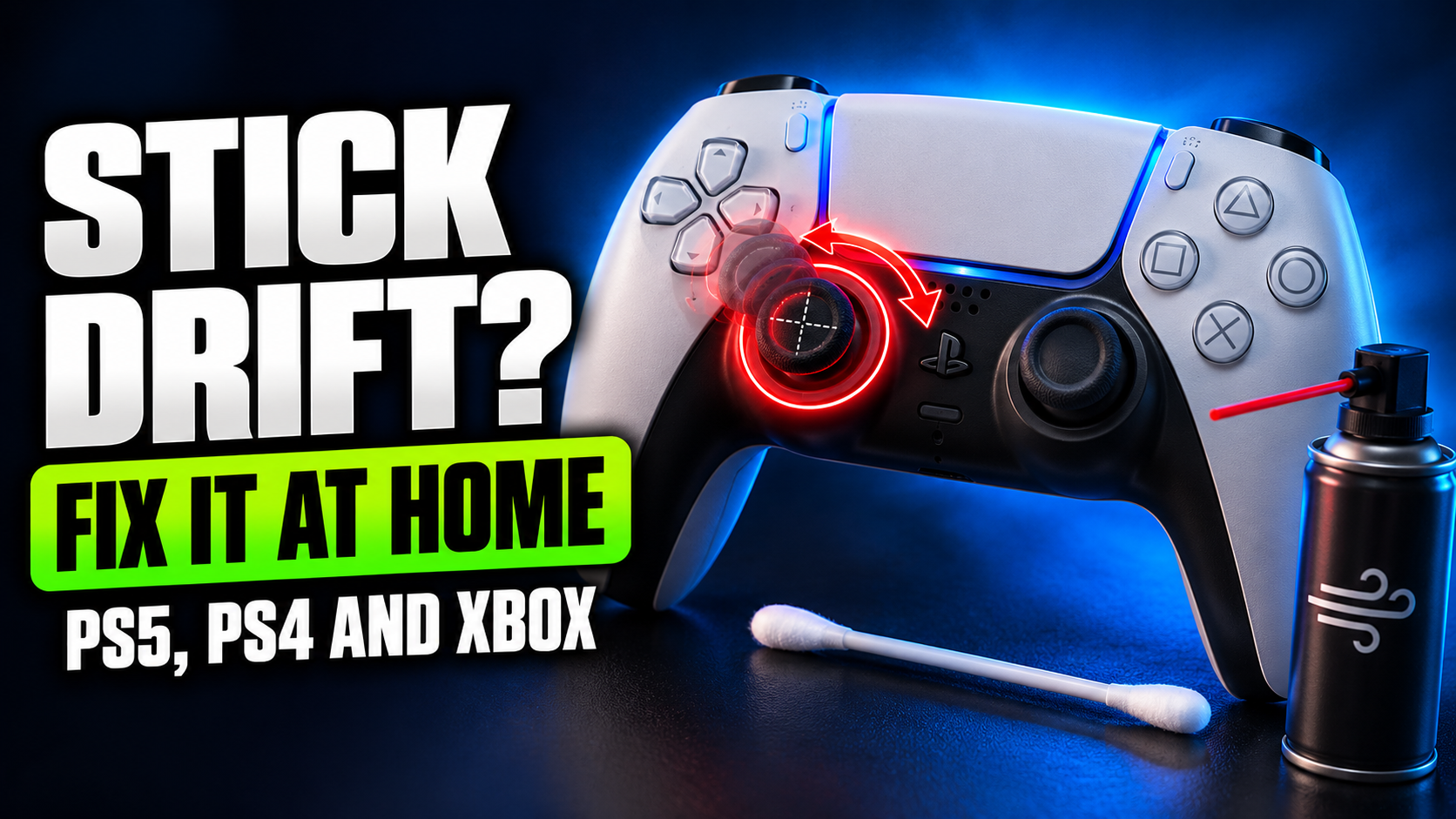
You let go of the stick. Your character keeps walking. Slowly, confidently, off a cliff.
That’s stick drift, and almost every controller gets it eventually. The good news is that some fixes cost nothing, a few take five minutes, and even when the hardware is worn out, you have options before buying a whole new controller.
What Is Stick Drift?
Stick drift is when your controller registers movement even though you’re not touching the analog stick. Your camera slowly pans, your character creeps forward, or your menu cursor drifts on its own.
It usually comes from one of these:
| Cause | How Common | Fixable at Home? |
| Dust and dirt around the stick | Common | Yes, easily |
| Worn out stick sensors | Very common on older controllers | Sometimes |
| Controller needs recalibrating or resetting | Occasional | Yes |
| Outdated controller firmware | Occasional | Yes |
| Physical damage from drops | Occasional | Usually needs repair |
Most standard controllers, including the DualSense, DualShock 4 and Xbox controllers, use small sensors called potentiometers. Inside, tiny parts rub against each other every time you move the stick. Over months and years, they wear down and start reporting the wrong position. That’s why drift is so common.
Step 1: Confirm It’s Really Drift
Before you start fixing anything, test the controller.
- On PC: Connect the controller and open a gamepad testing website, or use Steam’s controller settings, which show live stick input. If the stick position moves away from the center when you aren’t touching it, that’s drift.
- In game: Put the controller down on a table and watch whether your camera or character moves.
Test both sticks. Drift is often worse on one.
Step 2: Update the Controller Firmware
- PS5 DualSense: Connect it to your PS5 with a USB cable. The console checks for controller updates automatically, and you can check manually under Settings > Accessories > Controllers.
- Xbox controllers: Update through Settings on your Xbox, or with the Xbox Accessories app on Windows.
- PS4 DualShock 4: Updates are rare, so skip to the next step.
Step 3: Reset the Controller
PS5 DualSense and PS4 DualShock 4:
- Turn off your console.
- Find the tiny reset hole on the back of the controller.
- Push a pin or SIM ejector into it and hold for about five seconds.
- Reconnect the controller with a USB cable and press the PS button.
Xbox controllers: There’s no reset hole. Turn the controller off, unplug it or remove the batteries for a minute, then reconnect and pair it again.
Step 4: Clean Around the Stick
Dust and grime can get into the gap around the stick and mess with movement.
- Turn off the controller.
- Push the drifting stick all the way to one side.
- Blow compressed air into the gap from the opposite side, in short bursts.
- Rotate the stick and repeat from several angles.
- For stubborn grime, lightly dampen a cotton swab with isopropyl alcohol, wipe around the base of the stick, then rotate it in full circles to work it in. Let it dry completely before use.
Never pour liquid into the controller. A slightly damp swab is all you need.
Step 5: Increase the Deadzone
The deadzone is a small area around the center of the stick where movement is ignored. Increasing it can hide mild drift completely.
- In games: Many games have a deadzone option in their controller settings. Increase it a little at a time until the drift stops.
- On PC with Steam: Steam Input lets you adjust the stick deadzone for any game you launch through Steam. Open the controller settings for that game and raise the inner deadzone.
The trade-off is that very small stick movements get ignored, so keep the deadzone as low as possible while still stopping the drift.
Step 6: Use Your Warranty or Official Repair
If the controller is still under warranty, use it. Sony and Microsoft both offer repairs or replacements for faulty controllers within their warranty periods. Check the warranty terms for your region, and keep your purchase receipt handy.
Even outside warranty, official repair services may be an option, depending on your country.
Step 7: Replace the Stick (Advanced)
If the stick sensor itself is worn out, the real fix is replacing it. This usually requires opening the controller and soldering a new stick module onto the board.
You can also buy replacement Hall effect sticks for some controllers. Hall effect sticks use magnets instead of rubbing parts, so they don’t wear out the same way.
This is a job for someone comfortable with soldering, or a local repair shop. Opening the controller also voids any remaining warranty.
Step 8: Buy a Drift-Resistant Controller Next Time
If you’re buying a new controller, look for:
- Hall effect or TMR sticks: These use magnetic sensors and are much more resistant to drift. Many third-party controllers now use them.
- Replaceable stick modules: The PS5 DualSense Edge lets you swap out stick modules without soldering, though the controller costs more.
Quick Fix Guide
| Situation | Try This |
| Drift just started | Reset, update firmware, clean around the stick |
| Mild drift that comes and goes | Clean, then raise the deadzone |
| Controller under warranty | Contact Sony or Microsoft support |
| Heavy drift, old controller | Stick replacement or a new controller |
| Buying a new controller | Pick one with Hall effect or TMR sticks |
FAQs
Can stick drift fix itself?
Sometimes drift caused by dust improves after cleaning. Drift from worn sensors usually gets worse over time.
Does compressed air fix stick drift?
It can, if dirt is the cause. It won’t fix a worn out sensor.
How do I fix stick drift without opening the controller?
Reset the controller, update the firmware, clean around the stick with compressed air and raise the deadzone in your games.
Do Hall effect sticks prevent drift?
They’re much more resistant to drift because they use magnets instead of parts that rub together.
Is stick drift covered by warranty?
Usually, if the controller is still within its warranty period. Check the terms for your region.
If you’re using your controller on PC, our guide to reducing input lag on Windows 10/11 can help everything feel more responsive.


