
Best Control Settings for Crimson Desert PC (Keyboard & Mouse Guide)
Crimson Desert features fast-paced combat, quick dodging, combo attacks, and multiple skill mechanics. While the default keyboard and mouse controls are decent, many players feel the controls can become awkward during intense combat situations.
After testing different keybind combinations, these optimized control settings provide smoother movement, faster reactions, and more comfortable gameplay for both combat and exploration.
If you want better combat flow, easier skill access, and more responsive gameplay, these are the best control settings for Crimson Desert on PC.
Why You Should Change the Default Controls
The default controls in Crimson Desert have a few issues:
- Some important actions are placed too far from movement keys
- Combat skills can feel uncomfortable during fast fights
- Multiple key combinations slow reaction time
- Dodge and movement controls can become clunky
Optimizing your controls helps improve:
- Combat responsiveness
- Skill execution speed
- Movement accuracy
- Overall gameplay comfort
Best Keyboard and Mouse Settings for Crimson Desert
Best Movement Controls
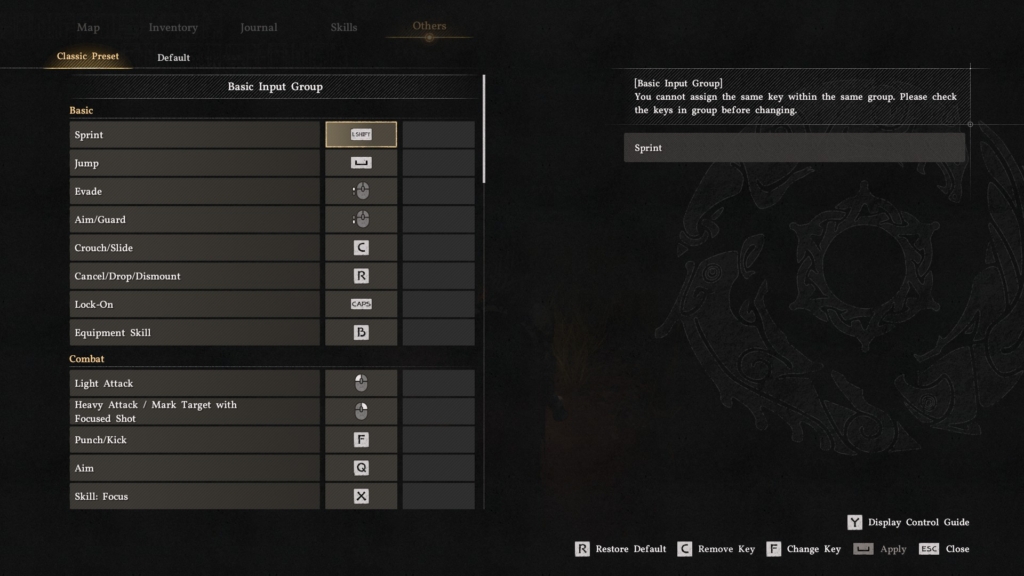
| Action | Recommended Key |
|---|---|
| Sprint | Left Shift |
| Jump | Space |
| Evade/Dodge | Mouse Side Button or Left Alt |
| Crouch/Slide | C |
| Lock-On | Caps Lock |
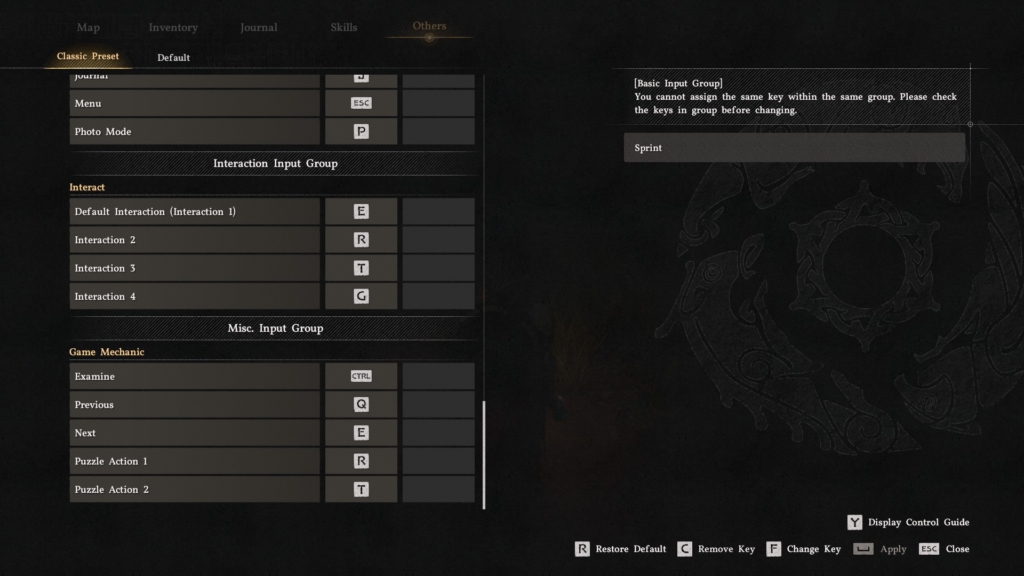
| Interact | E |
Why These Work Better
Keeping sprint on Left Shift and interaction on E feels natural for most PC players. Moving evade to a mouse side button or Left Alt makes dodging significantly easier during boss fights.
Lock-On on Caps Lock also feels more comfortable than stretching to awkward keys during combat.
Best Combat Keybinds
Recommended Combat Layout
| Action | Recommended Key |
|---|---|
| Light Attack | Left Mouse Button |
| Heavy Attack | Right Mouse Button |
| Aim | Q |
| Punch/Kick | F |
| Focus Skill | X |
| Quick Swap | Z |
| Imbue Element | V |
These controls create a smoother combat flow while keeping all major actions close to movement keys.
Best Skill Keybind Settings
Crimson Desert uses many combo-based abilities, so comfortable skill placement is extremely important.
Recommended Skill Layout
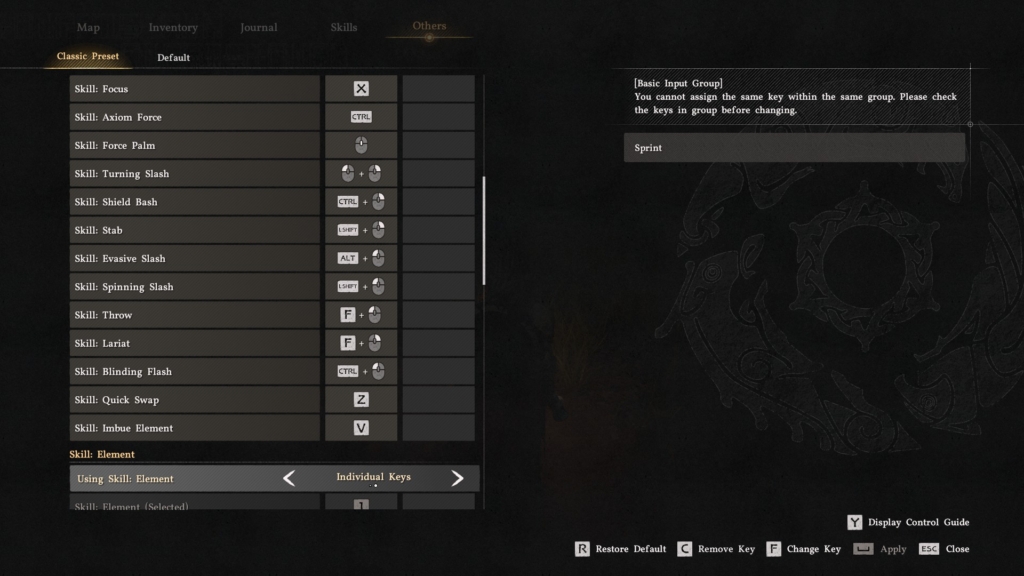
| Skill | Recommended Key |
|---|---|
| Flame Skill | 1 |
| Frost Skill | 2 |
| Lightning Skill | 3 |
| Wind Skill | 4 |
This layout allows fast element switching without removing your hand from movement controls.
Best Mouse Settings for Crimson Desert
Recommended Mouse Sensitivity
| Setting | Recommended Value |
|---|---|
| Mouse Sensitivity | 35–50 |
| Camera Sensitivity | Medium |
| Aim Sensitivity | Low-Medium |
| Mouse Smoothing | Off |
Turning off mouse smoothing helps reduce input delay and makes camera movement feel more responsive.
Best Settings for Faster Dodging
Dodging is one of the most important mechanics in Crimson Desert.
Recommended Dodge Setup
- Evade: Mouse Side Button
- Sprint: Left Shift
- Lock-On: Caps Lock
Using a mouse button for dodge gives much faster reaction times compared to keyboard-only controls.
This becomes especially useful during:
- Boss fights
- Fast enemy combos
- PvE group encounters
- Mounted combat
Best Controls for Exploration
For smoother exploration and open-world gameplay:
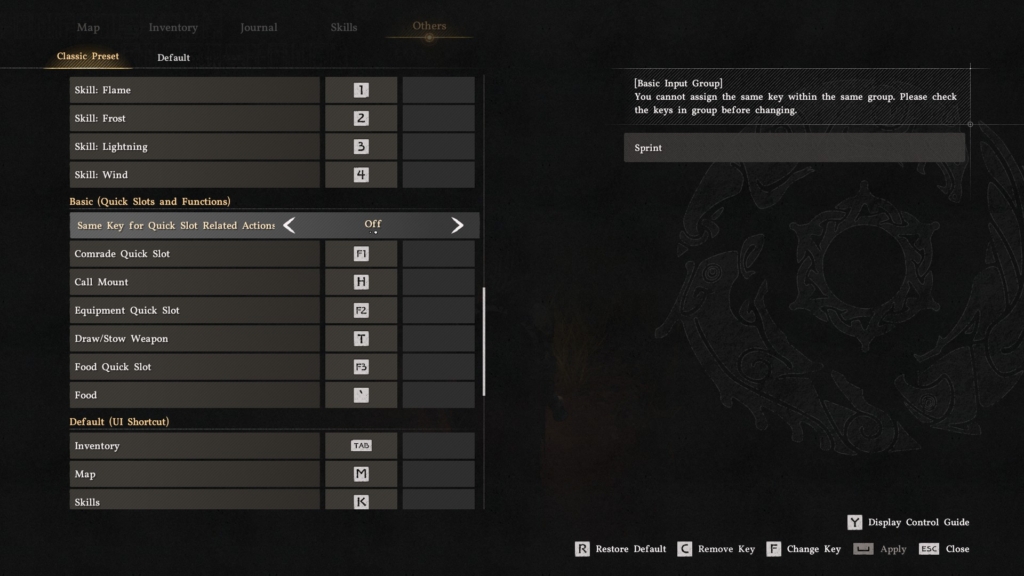
| Action | Recommended Key |
|---|---|
| Call Mount | H |
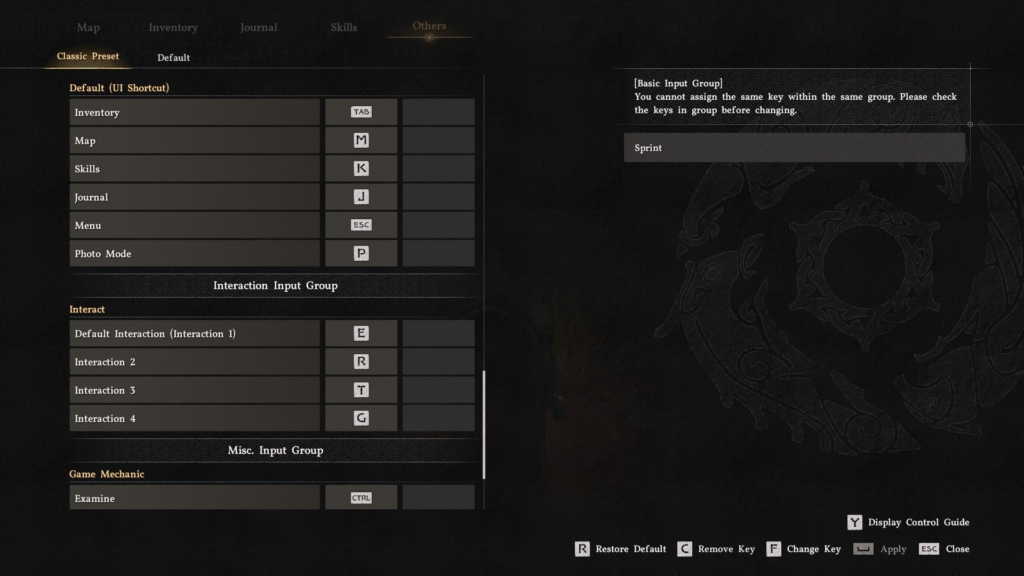
| Map | M |
| Inventory | TAB |
| Skills Menu | K |
| Journal | J |
These controls keep all important menus easy to access without interrupting gameplay flow.
Additional Optimization Tips
1. Use Fullscreen Mode
Fullscreen reduces input latency slightly compared to borderless mode.
2. Turn On NVIDIA Reflex
If available, NVIDIA Reflex helps reduce input lag during combat.
3. Disable Mouse Acceleration in Windows
Mouse acceleration can make aiming and camera movement inconsistent.
4. Use a Gaming Mouse if Possible
Extra mouse buttons help significantly in Crimson Desert because of the large number of combat actions.
Best Control Settings Summary
If you want the fastest and most comfortable setup:
- Sprint: Left Shift
- Dodge: Mouse Side Button
- Interact: E
- Light Attack: Left Click
- Heavy Attack: Right Click
- Quick Swap: Z
- Imbue Element: V
- Lock-On: Caps Lock
- Skills: 1–4
This setup provides the best balance between combat efficiency and overall comfort.
Final Thoughts
Crimson Desert has deep combat mechanics, and using optimized controls can dramatically improve the gameplay experience.
The default controls are functional, but adjusting dodge placement, skill keys, and combat bindings makes movement and combat feel much smoother.
For most PC players, the biggest improvement comes from moving evade to a mouse button and keeping all major combat actions close to WASD.
Once optimized, the controls feel far more responsive and enjoyable during both exploration and boss fights.