Best Camera and View Settings for Crimson Desert PC
Crimson Desert features cinematic combat, fast movement, and large-scale open-world exploration. However, the default camera settings can sometimes feel too shaky, too close, or visually distracting during combat.
After testing multiple camera configurations, these settings provide the smoothest gameplay experience with better visibility, reduced motion sickness, and cleaner combat tracking.
If you want smoother exploration, easier enemy tracking, and less visual clutter, these are the best camera and accessibility settings for Crimson Desert on PC.
Why Camera Settings Matter in Crimson Desert
The default camera setup focuses heavily on cinematic immersion, but this can create problems during gameplay:
- Excessive camera shake during combat
- Motion blur causing blurry movement
- Tight camera distance reducing visibility
- Chromatic aberration making visuals less sharp
- Fast camera movement causing discomfort
Optimizing these settings improves:
- Combat visibility
- Reaction time
- Enemy tracking
- Open-world exploration
- Overall gameplay comfort
Best Camera Settings for Crimson Desert
Recommended Camera Configuration
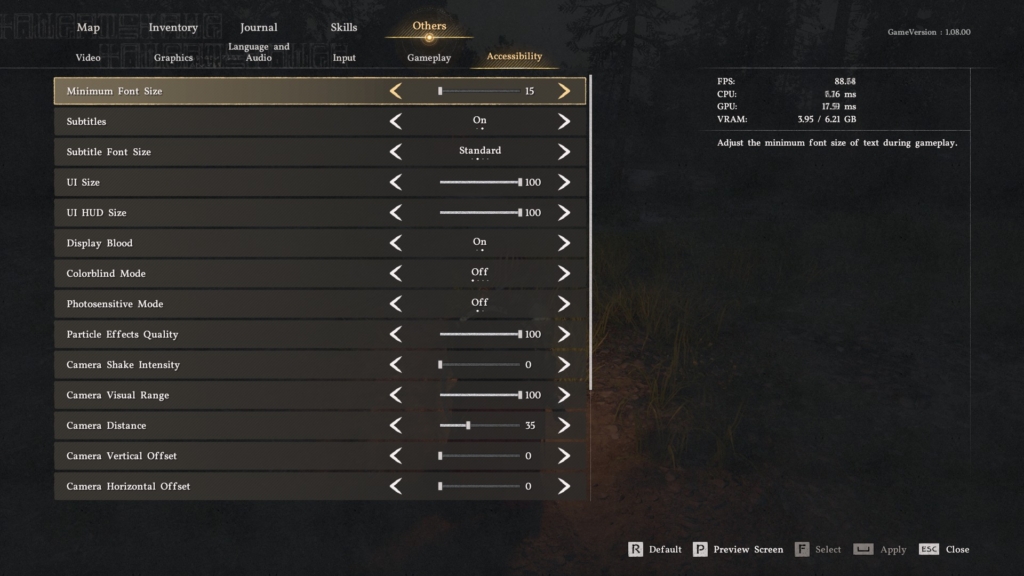
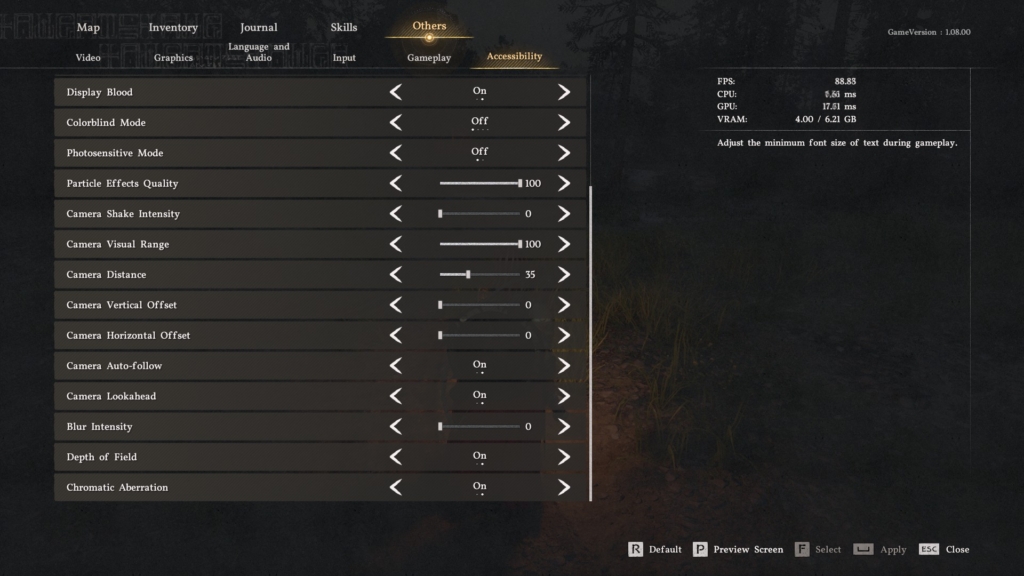
| Setting | Recommended Value |
|---|---|
| Camera Shake Intensity | 0 |
| Camera Visual Range | 100 |
| Camera Distance | 35 |
| Camera Vertical Offset | 0 |
| Camera Horizontal Offset | 0 |
| Camera Auto-follow | On |
| Camera Lookahead | On |
Why These Camera Settings Work Best
Camera Shake Intensity: 0
This is one of the biggest improvements you can make.
The default camera shake becomes distracting during:
- Boss fights
- Heavy attacks
- Explosions
- Mounted combat
Reducing it to 0 creates a much smoother gameplay experience and improves visibility during combat.
Camera Visual Range: 100
Keeping visual range at maximum gives:
- Better environmental awareness
- Easier enemy tracking
- Improved exploration visibility
- Better combat readability
This setting is especially useful during open-world traversal and large fights.
Camera Distance: 35
A slightly zoomed-out camera improves:
- Combat awareness
- Dodging visibility
- Enemy positioning
- Exploration comfort
The default camera can feel too close during combat, especially against large enemies.
Best Visual Effect Settings
Recommended Visual Settings
| Setting | Recommended Value |
|---|---|
| Blur Intensity | 0 |
| Depth of Field | Off |
| Chromatic Aberration | Off |
| Particle Effects Quality | 100 |
Why You Should Disable Motion Blur
Motion blur often makes gameplay feel less responsive.
Turning Blur Intensity to 0 helps:
- Improve visual clarity
- Reduce eye strain
- Make combat easier to read
- Improve sharpness during fast movement
Most PC players prefer motion blur disabled for smoother gameplay.
Should You Disable Chromatic Aberration?
Yes.
Chromatic aberration adds cinematic effects around screen edges but reduces image clarity.
Turning it OFF gives:
- Sharper visuals
- Cleaner image quality
- Better overall visibility
This is especially noticeable at 1080p resolution.
Best Accessibility Settings for Crimson Desert
Recommended Accessibility Setup
| Setting | Recommended Value |
|---|---|
| Subtitles | On |
| Subtitle Font Size | Standard |
| UI Size | 100 |
| UI HUD Size | 100 |
| Display Blood | On |
| Colorblind Mode | Off (unless needed) |
| Photosensitive Mode | Off |
Best Settings for Competitive Gameplay Feel
If you want smoother combat and faster reactions:
- Camera Shake: 0
- Motion Blur: 0
- Chromatic Aberration: Off
- Camera Distance: 35
- Camera Visual Range: 100
These settings make the game feel significantly cleaner and more responsive.
FPS Impact of Camera and Visual Settings
Some visual effects slightly affect performance.
Settings That Improve FPS
- Motion Blur Off
- Chromatic Aberration Off
- Depth of Field Off
Settings With Minimal FPS Impact
- Camera Distance
- Camera Offset
- UI Size
- Subtitle Settings
Disabling unnecessary cinematic effects can improve both FPS and image clarity.
Best Camera Settings Summary
If you want the best overall experience:
- Camera Shake Intensity: 0
- Camera Visual Range: 100
- Camera Distance: 35
- Motion Blur: 0
- Chromatic Aberration: Off
- Depth of Field: Off
- Camera Auto-follow: On
- Camera Lookahead: On
This setup provides the smoothest and cleanest gameplay experience for most PC players.
Final Thoughts
Crimson Desert looks visually stunning, but some default camera effects make gameplay feel less responsive than it should.
Disabling excessive cinematic effects like motion blur and camera shake dramatically improves gameplay clarity, especially during intense combat encounters.
The combination of wider camera distance, maximum visual range, and cleaner visuals creates a much smoother overall experience for both exploration and combat.
If you want Crimson Desert to feel more responsive and less visually distracting, these settings are highly recommended.