Best Graphics Settings for Crimson Desert (Max FPS + Smooth Gameplay Guide)
Crimson Desert is a visually stunning game, but it’s also quite demanding on hardware. Many players struggle with low FPS, especially on mid-range systems. If you’re getting around 40–50 FPS on default settings, optimizing your graphics can easily boost performance without ruining visual quality.
After testing on a system with i5-13420H, 16GB RAM, and RTX 4050, the FPS improved from around 45 FPS to 80–90 FPS with the right settings. Here’s a complete optimized guide to help you get the best performance.
System Used for Testing
Before diving into settings, here’s the system used:
- CPU: Intel i5-13420H
- GPU: NVIDIA RTX 4050
- RAM: 16GB
- Resolution: 1920×1080
This setup is slightly below recommended GPU level but still capable of smooth gameplay with optimization.
Best Video Settings (Performance + Clarity Balance)
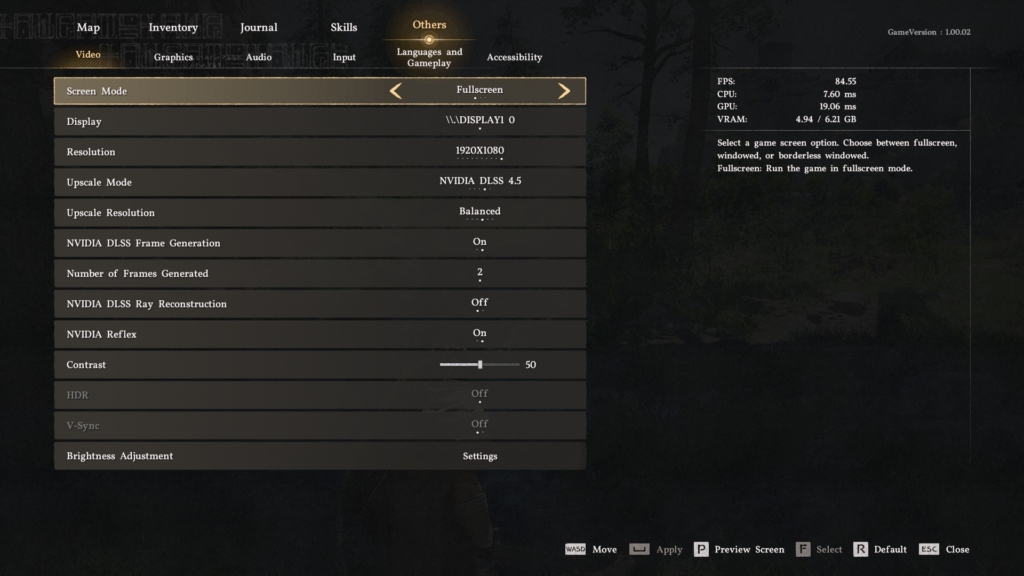
Display Settings
- Screen Mode: Fullscreen
- Resolution: 1920×1080 (Recommended for best FPS)
- Upscale Mode: NVIDIA DLSS 4.5
- Upscale Resolution: Balanced
- DLSS Frame Generation: On
- Frames Generated: 2
- DLSS Ray Reconstruction: Off
- NVIDIA Reflex: On
- V-Sync: Off
- HDR: Off
Why these settings matter:
DLSS is the biggest performance booster here. Using Balanced mode + Frame Generation gives a massive FPS increase while keeping visuals sharp. NVIDIA Reflex reduces input lag, which is important for smoother gameplay.
Best Graphics Settings
Preset: Medium (Base Setup)
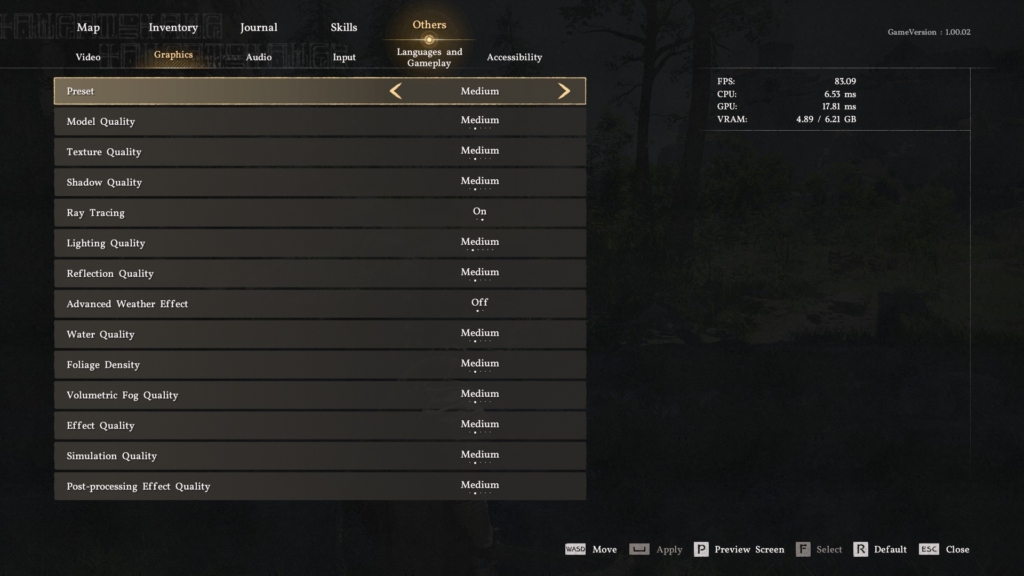
Instead of using High or Ultra, start with Medium and tweak manually.
Detailed Graphics Settings
- Model Quality: Medium
- Texture Quality: Medium
- Shadow Quality: Medium
- Ray Tracing: On (Optional – turn Off for more FPS)
- Lighting Quality: Medium
- Reflection Quality: Medium
- Advanced Weather Effects: Off
- Water Quality: Medium
- Foliage Density: Medium
- Volumetric Fog Quality: Medium
- Effect Quality: Medium
- Simulation Quality: Medium
- Post-processing Quality: Medium
Important Optimization Tips
1. Turn Off Advanced Weather Effects
This setting heavily impacts performance and doesn’t add much during gameplay. Keeping it off gives a noticeable FPS boost.
2. Ray Tracing – Optional
- ON: Better visuals but lower FPS
- OFF: +10 to +20 FPS boost
If you want stable 90+ FPS, turn it OFF.
3. DLSS is Mandatory
Without DLSS, your FPS will drop significantly. Always keep:
- DLSS: ON
- Frame Generation: ON
This is the main reason for jumping from 45 FPS to ~88 FPS.
4. Avoid High/Ultra Presets
High settings increase GPU load heavily with minimal visual improvement. Medium gives the best balance.
Expected FPS Performance
With the above settings:
- Before Optimization: ~40–50 FPS
- After Optimization: ~80–90 FPS
This is almost a 2x performance boost without sacrificing much visual quality.
Minimum vs Recommended Spec Comparison
Your system vs game requirements:
Minimum Requirement
- GTX 1060 → Your RTX 4050 is much stronger
Recommended Requirement
- RTX 2080 → RTX 4050 is slightly lower but optimized DLSS closes the gap
Conclusion:
Your system is perfectly capable of running the game smoothly with optimized settings.
Best Settings Summary (Quick Copy)
If you want a quick setup:
- Preset: Medium
- DLSS: Balanced
- Frame Generation: On
- Ray Tracing: Off (for max FPS)
- Advanced Weather: Off
- All other settings: Medium
Final Thoughts
Crimson Desert is a demanding game, but with the right settings, even mid-range GPUs like the RTX 4050 can deliver smooth gameplay.
The key is to focus on DLSS, frame generation, and avoiding heavy settings like ray tracing and advanced weather effects. With these optimizations, you can enjoy both good visuals and high FPS.
If you’re aiming for the best experience, always prioritize smooth gameplay over ultra graphics.