
How to Add an M.2 SSD to Your PS5 (Do It Before GTA 6)
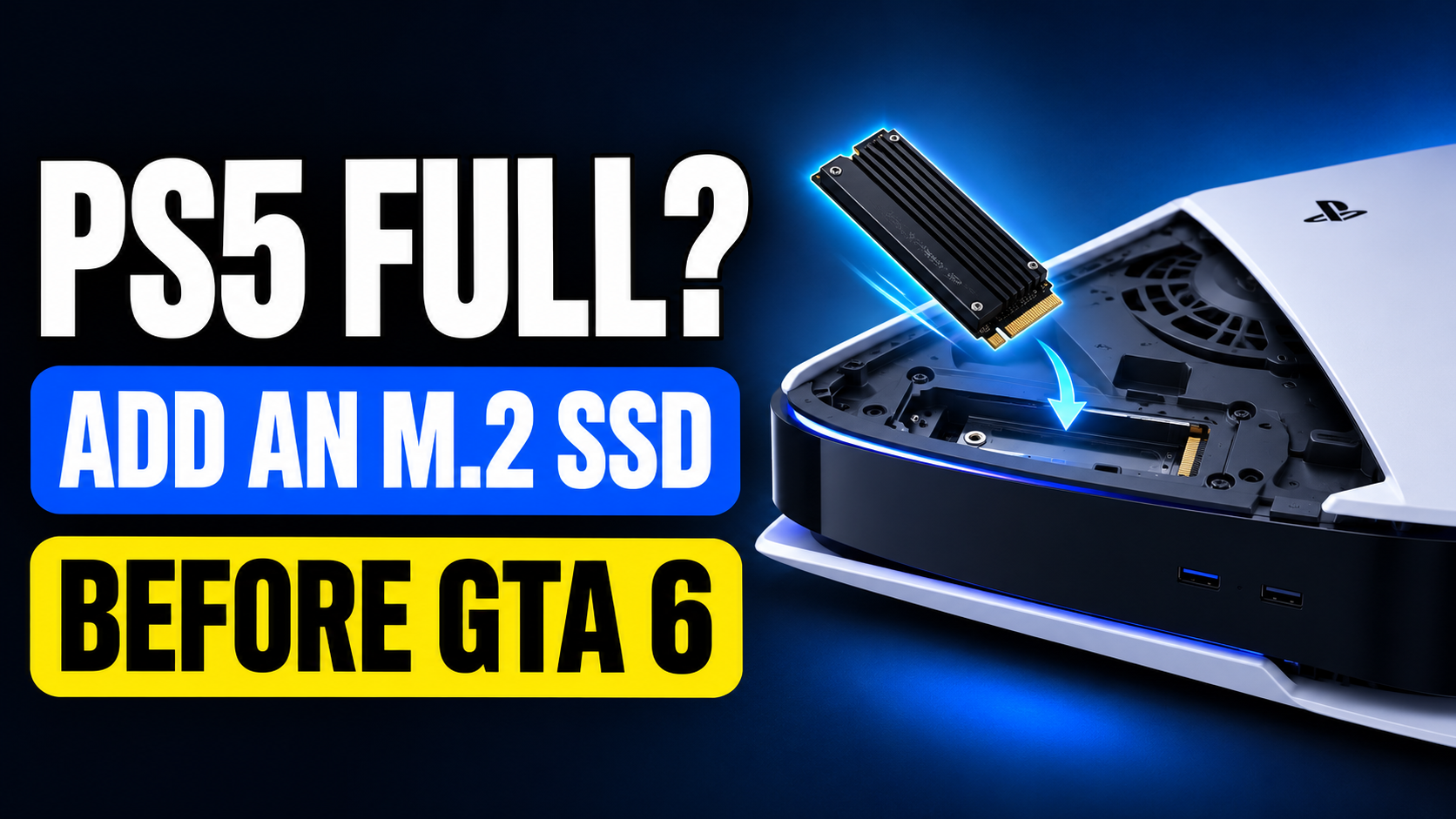
GTA 6 lands on November 19. Pre-loading starts November 12. And somewhere, a PS5 owner is about to open their storage screen and discover they have 43GB free and a library full of games they haven’t touched since 2023.
Don’t be that person. Adding an M.2 SSD to your PS5 is one of the easiest upgrades you’ll ever do. It takes about 15 minutes, needs one small screwdriver, and the new storage works just as fast as the console’s built-in drive.
Why You’ll Probably Need More Space
The PS5’s built-in storage fills up fast. The operating system takes a chunk before you install anything, and modern games are huge.
| Model | Built-in Storage | Space You Can Actually Use |
| Original PS5 | 825GB | About 667GB |
| PS5 Slim | 1TB | Noticeably less after system files |
| PS5 Pro | 2TB | Noticeably less after system files |
Rockstar hasn’t confirmed GTA 6’s install size, but unofficial reports suggest it could be very large. Add a couple of other big games and your storage is gone. An M.2 SSD solves this properly, instead of deleting and redownloading games every few weeks.
What Kind of SSD Does the PS5 Need?
Not every SSD works. Sony has specific requirements.
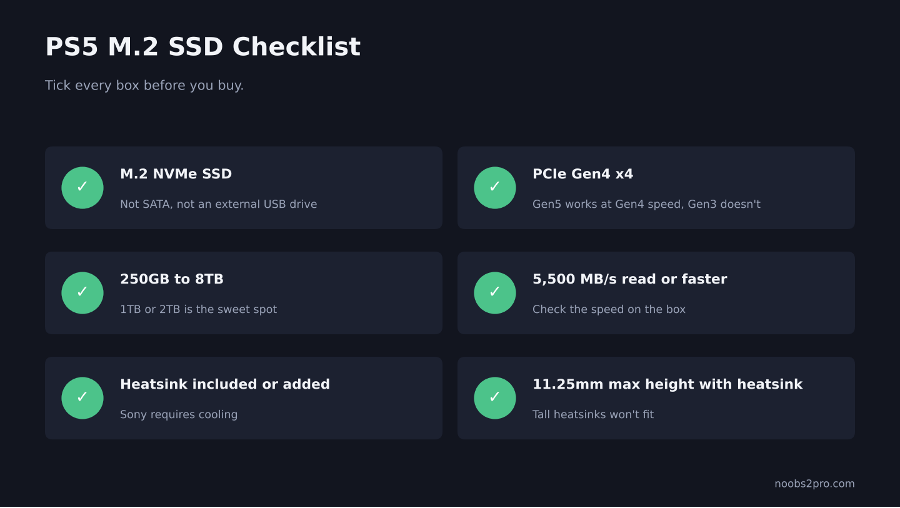
The requirements an M.2 SSD needs to meet to work in a PS5 (file: ps5-m2-ssd-requirements.png)
| Requirement | What You Need |
| Type | M.2 NVMe SSD |
| Interface | PCIe Gen4 x4 (Gen5 drives work but run at Gen4 speed) |
| Capacity | 250GB to 8TB |
| Read speed | 5,500 MB/s or faster recommended |
| Size | 2230, 2242, 2260, 2280 or 22110 |
| Cooling | A heatsink is required |
| Total height with heatsink | 11.25mm or less |
A few tips:
- Buy a drive with a heatsink already attached, or one marked as PS5 compatible. It saves you buying and fitting a separate heatsink.
- Avoid PCIe Gen3 drives. They don’t meet the speed requirement.
- Check the height. Some big gaming heatsinks are too tall for the PS5’s slot.
- 1TB or 2TB is the sweet spot for most players. Bigger drives cost a lot more.
What You’ll Need
- A compatible M.2 SSD with a heatsink
- A small Phillips screwdriver (size #1)
- A soft, flat surface to work on
- 15 minutes and some patience
Before You Start
- Update your PS5 to the latest system software.
- Turn it off completely. Not Rest Mode. Fully off.
- Unplug every cable and wait a few minutes for it to cool down.
- Touch something metal to get rid of static before touching the SSD.
Step-by-Step Installation
The idea is the same on every model: remove a cover, unscrew the M.2 slot cover, insert the SSD, screw it down and put everything back. The covers come off a little differently depending on your model, so check Sony’s official installation guide for your exact PS5 if anything looks unfamiliar.
Step 1: Remove the stand and lay the console flat. Place the PS5 on a soft surface with the correct side facing up, so you can reach the side with the M.2 slot.
Step 2: Remove the cover panel.
- Original PS5: Gently lift the corner of the white side cover and slide it off. It feels like you’re about to break it. You’re not.
- PS5 Slim and PS5 Pro: Slide off the cover panel that hides the expansion slot, following Sony’s guide for your model.
Step 3: Remove the M.2 slot cover. You’ll see a small metal cover held by one screw. Remove the screw and the cover.
Step 4: Move the spacer. Inside the slot there’s a small screw and a spacer. Unscrew them and move the spacer to the hole that matches the length of your SSD. For most SSDs, that’s the 2280 position.
Step 5: Insert the SSD. Hold it at a slight angle and slide it into the connector until it’s fully in. Then gently press it down flat onto the spacer.
Step 6: Screw it down. Put the screw back through the notch at the end of the SSD and tighten it gently. Don’t overtighten.
Step 7: Put the covers back. Replace the metal slot cover if your heatsink allows it. Some heatsinks are designed to replace the metal cover entirely. Then slide the main cover panel back on until it clicks.
Step 8: Power on and format. Reconnect the cables and turn on the PS5. It will detect the new SSD and ask you to format it. Follow the on-screen steps. The PS5 also shows the drive’s read speed after formatting.
Move Your Games to the New SSD
Once it’s set up, you can move games between drives:
- Go to Settings > Storage.
- Select Console Storage, then Games and Apps.
- Choose Move Items, select the games you want to move and confirm.
You can also set the M.2 SSD as the default install location for new PS5 games in the storage settings. That way GTA 6 goes straight onto the new drive.
M.2 SSD vs External USB Drive
| M.2 SSD (internal) | External USB drive | |
| Play PS5 games from it | Yes | No, only store them |
| Play PS4 games from it | Yes | Yes |
| Speed | Same as built-in storage | Slower |
| Installation | Inside the console | Just plug in |
| Price | Higher | Lower |
An external drive is fine for storing PS4 games or keeping PS5 games you’re not currently playing. But to actually play PS5 games like GTA 6 from extra storage, you need the M.2 slot.
Common Mistakes
- Buying a Gen3 SSD because it was cheaper. It won’t meet the speed requirement.
- Skipping the heatsink. Sony requires cooling. Without it, the SSD can overheat.
- Forgetting to move the spacer, so the SSD doesn’t sit flat.
- Installing with the console in Rest Mode. Always fully power off and unplug.
- Using a heatsink that’s too tall, so the cover won’t close.
FAQs
Does adding an SSD to PS5 void the warranty?
No. The M.2 expansion slot is designed for users to install SSDs themselves, and Sony provides official instructions.
What size SSD should I get for GTA 6?
A 1TB or 2TB SSD is plenty for most players and leaves room for other big games.
Can I play PS5 games from an external hard drive?
No. External drives can store PS5 games, but they must be on internal storage or an M.2 SSD to play.
Do I need a heatsink for the PS5 SSD?
Yes. Sony requires cooling, either a heatsink on the SSD or one you fit yourself.
Will the M.2 SSD be slower than built-in storage?
Not if it meets Sony’s requirements. A fast Gen4 SSD performs about the same as the internal drive.
Getting ready for launch? Read our GTA 6 beginner tips and our full guide to GTA 6’s price, platforms and PC release.


